With JustRelate CRM you can import and synchronize emails and appointments.

Email and Appointment Connector for Groupware
See also: Regarding the automatic appointment synchronization and automatic import of emails, please see Groupware Connector - Groupware synchronization.
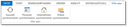
Here in MS Outlook 2013 (language controlled by your operation system)
You can open a synchronization dialog (connector) for emails and appointments in the groupware using the “Synchronize” command. This offers the option of editing the Subject and Recipient of e-mails or the person Responsible for an appointment. If the e-mail address cannot be found in the CRM or is not unique, you can enter a new suitable contact here or select and assign the correct one from the database.

Attention: The JustRelate CRM Web Client must be opened because the Desktop Integration Manager needs to be started to ensure successful manual synchronization.
Checking in several emails as a batch
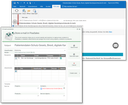
E-Mail connector for the groupware (here Microsoft Outlook)
If the email is not the last one to be transferred, the "For all" option is activated, and the button "Create case" is deactivated at the same time.
If the import encounters unknown senders or recipients, the import process with the E-Mail Connector dialog is interrupted for the current email.
The main classification, additional classifications, projects, contacts, products and service objects are adopted. In addition, "Open email" and "Cancel" also have an effect on subsequent emails.
If the process is interrupted, a message for each email that has not been imported is generated in Outlook.
The Save and Open button function in the email connector opens the mailbox if more than one email is imported.
Note: You should not mark emails that have nothing to do with each other and check them in as a batch. The import behavior is primarily meant to support you in importing several emails with related content in one step and setting all relations correctly at the same time. If a contact appears in "Save as / Contacts", the system assumes that it belongs to all marked emails, and thus is pre-assigned from the first email the server receives.
Attention: When importing multiple emails at the same time, check if they belong together. Otherwise, pre-assigned links may appear that have not been corrected in the Connector dialog.
Sender and recipient
An email is automatically assigned to the sender and the recipients if these are found in the database. You can select another sender for incoming emails and unselect recipients in the list.
Unknown sender
If an e-mail address cannot be clearly assigned to a contact, it is initially displayed in red. Then open the contact selection dialog by clicking on the email address shown in red to correct or re-enter the contact or email address in the system.
§ GDPR: The contact selection dialog enables you to capture new persons in the CRM. When doing so, you must observe the GDPR and data protection! See GDPR-compliant registration of persons.
Duplicate email addresses are checked during import
If a company and their employees use the same email address (which is not recommended), the person (as the contact person) is preferred when importing the email.
If an e-mail address is found twice (two contacts) when importing emails with the connector, the system checks whether the contacts are a person and a company, or whether the person is registered as an employee of the company.
In these cases, the person is given preference and no duplicate warning is issued. Otherwise, the email address is not unique and is treated as such.
Checking in emails with "unknown" recipients
When importing emails, unknown recipient email addresses are also imported automatically. This means that the system does not omit any of the original recipients from "Reply all" and "Resend", even if they are not known in the CRM.
"Unknown" email addresses are marked in the mailbox where you can subsequently consolidate them.
The import behavior can be controlled by means of the variable PSA_IMP_EMA_LNK_UNK_CON:
- n = unknown recipients are automatically deselected in the import process.
- y = in the email connector, the Selection flag is automatically set. No contact is registered, but the email address is saved in the recipient list (default setting).
Email response to unknown sender
For emails with an unknown sender, with a manually assigned sender or senders with multiple email addresses, the system replies to the original sender email address. When replying, the system does not use the address of the potential contact, but the sender's email address from the email itself, even if it is not present in the system.

Admin: The sender's email address is always stored in the EML_FRM field (normal standard). If a valid address is present, it is used for the reply. If the sender is unknown, the field is also filled in.
The hyperlink in the Sender is field includes a function that can be used to assign a contact to an unknown email address. If the email address is to be transferred to the master data of the assigned contact, a merge dialog (Update contact information) opens after the contact assignment.
Tip: See also Tips on using activities, Unknown contacts in a participant or recipient list
Reloading images in emails
When synchronizing emails, reloading images from external sources is supported (src attribute with an http(s) reference). See also Security: Reloading images.