JustRelate CRM has mechanisms that check the assignment of activities, contacts, cases and project folders among each other and supports them. Cases can be assigned automatically or by yourself.

Activities, cases and project folders
Assigning the main project
Several cases or projects can be assigned to activities, but only one case can be the main project. If a main project has been specified from several cases using the selection dialog, all other added cases are automatically stored in the Save as relationship (side cases).
You can also subsequently specify a different main project for the Main project assignment by moving the checkmark in the list of the selection dialog.
When deleting the main project in the right list, the first project in the list becomes the main project of the activity.

Admin: Regarding this feature, adjustments through customizing may be required when upgrading to a later JustRelate CRM version. In this case, please contact your project partner at JustRelate.
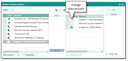
change main project
In certain cases, you can also assign activities directly in the activity relationship of contacts (Activities tab). If the tab is activated and the activity is selected, the corresponding selection dialog can be opened via the Assign main project function. The activity is saved in the activity assignment of the activity. You can then make further activity assignments in the activity itself via the Save as subform or via the Main project assignment.
Note: If a main case is already assigned in the activity, it is replaced with the new main case. Should the previous main case remain in the activity, it can be stored as an additional case in the Save as subform.
If you empty the main project assignment in the header of an activity, the project assignment in "save as" automatically moves up. If there is more than one assignment in "save as", the project selection dialog is presented for selecting a new main project from the assignments already available.
Creating service calls in activities
For emails and phone calls, you can create a service call using the corresponding function.
See also: Service, The service call
Activities with contact or case relations
When creating activities for contacts, it is possible that a contact has one or more ongoing cases (sales or marketing cases that are not completed). To ensure that such activities are assigned to an ongoing case, the CRM checks whether the contact in question is assigned to an ongoing (open) case. If the main person of the activity has a company assignment, the check for open cases is carried out for this company, otherwise for the person themselves.
If there are open cases, the CRM automatically offers to select and assign them to the activity when saving it.
Note: If an activity is a marketing activity with a participant status, the activity and the participant status to be assigned are automatically queried when the activity is saved.
See also: Marketing, Attendee status and feedback
If you create activities from a case, you are automatically assigned as their agent. New activities can be created via the function bar of contact forms and cases. Activities that are created from a case are in its context. If further assignments (contacts, attachments) are created in the activity itself, the CRM provides the corresponding case context in the preselection.
All documents of a main case and the person or company defined as the main participant are also displayed. No documents of the main participant are displayed if this is an internal employee.
Admin: Your administrator or customizer can adapt the status that marks a case as open or closed according to the requirements in the process configuration.
Creating new cases in activities
New processes to an activity can be created using the selection dialog for the case assignment (New project button in the dialog). The menu includes all cases in sales, marketing and service. For example, you can create and assign a new service call to an incoming phone call that you have created.
Deactivating the query for open cases
If you activate Never ask in the selection dialog titled You have not selected a project, do you want to do it now?, no such query will be displayed. For this, JustRelate CRM uses the user-specific variable PSA_ACT_SEL_PRO which is then set to n. If you set the variable to ALWAYS, the query will always be displayed when selecting a case, even if no open cases were found.
You can find the variable under My data/Configuration/My settings. Deleting it, restores its initial state, i.e., a query will be displayed for open cases again.
Activity history in cases
In all projects and cases that can have a source case (these are marketing actions, sales cases, service calls and service cases), you will find in the activity tab the View drop-down menu with the Project and Source + Project entries. They allow you to add the activities originating from the source case (if present). This way, you can, for example, also view the activities of the preceding business opportunity for a quote, and better track the process as a whole.