Follow-up-activities can be created via all activity forms and memos. Follow-up activities can be recognized because the name of the source activity can be seen as a hyperlink in their title bar. Follow-up activities can be created easily as the source activity is being processed, e.g., when writing a letter or visit report (Follow-up activity button in the note field or in the function bar). The follow-up activities of an activity can always be seen and immediately be opened using the hyperlink in the activity form of the source activity. You should assign activities with follow-up activities an additional activity status, i.e., In post-processing or Post-processing completed.

Follow-up activities
See also below: Subsequent linking of follow-up activities
The status in post processing can alos be assigned as an open (free) status without follow-up activities.

Attention: When you create a follow-up activity, the "For contact" field is not always adopted . In the standard, no contact assignments are copied. This can be changed through customizing as required. The "For contact" field of the follow-up activity is preset with the initial activity’s customer of the main project (if it exists). The "For contact" is therefore not transferred 1:1. This behavior is by design and not adjustable. Note in this context also the variable PSA_FLW_ACT_CPY_REL below.
Scenarios
Structuring activities through follow-up activities can be useful in several scenarios, e.g.:
- For post-processing a completed activity. In this case, the source activity is set to "in post process" and does not appear in the Entry Portal. It can be traced back exclusively via the follow-up activities.
- For a main activity with sub-activities. Then, the "follow-up activity" is a checklist item or a partial step for the solution of a task or for the preparation of an appointment. In this case, the activity is not set to "in post process" so the main activity and also all sub-activities in the Entry Portal remain visible.
- Use follow-up activities to store all information relevant only to internal attendees in follow-up tasks, follow-up memos, etc., to an appointment with external attendees. This protects internal information from being mistakenly sent when the appointment is automatically synchronized, because the information is not in the notes field, which is always synchronized.
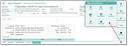
Follow-up activities of an appointment
For this reason, the display rules in the Entry Portal are not changed, i.e., activities in the "in post process" status (DON status) are still handled like finished activities and are not displayed in the Entry Portal.
Quick creation of follow-up activities directly in the form
As an alternative to creating follow-up activities for an original activity via the function bar (+) or via the selection dialog on the list of follow-up activities, you can enter and delegate several follow-up activities directly in the activity form in the process of storing it. The Type of the activity can be selected. Important data, such as the Main participant or the Main project, are automatically copied from the source activity. The Subject is set automatically.
- Appointment, phone call, task and memo
You can find the quick entry option below the list of follow-up activities in the Note main tab. - E-mail and letter
Here, the quick entry option can be found in the "Additional data" tab. As before, the follow-up activities to emails and letters have a details area where the content (text) of a selected follow-up activity can be seen.
You can preselect the type of a new follow-up activity using the pull-down menu of the Type field. The new follow-up activity is not opened or put into the edit state, but is treated similar to a pinboard post.
You can capture it by setting just a few fields (Subject, Responsibility, Due date).
The subject of a new follow-up activity originates from the characters up to the first line break, or the first 255 characters. This logic is the same as for the action panel of the cockpit, so that the quick creation behaves consistently.
If the Responsible and Due date are not specified, then the currently logged-in user as well as the default start and due date are entered when the follow-up activity is subsequently generated. By means of a create button next to "Responsible" and "Due on" you can then have the follow-up activity created.
After that, the entry fields are cleared and the follow-up activity is linked to the source activity so that it immediately appears in the list of follow-up activities.
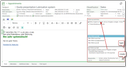
quick creation of a follow-up activity in the form
Quick creation of follow-up activities from the detail form of sublists
To quickly create follow-ups from the detail form of selected entries in a list, simply select the activity type using the three vertical dots to the right of the subject to immediately create the corresponding follow-up activity.
Note: The logged-in user is automatically set as the person responsible when a follow-up activity is created. She or he can be different from the person responsible for the original activity. If you have created follow-up activities, please set the status of the source activity to Post-processing. This way, you can also see in an overview list that follow-up activities are pending.

Admin: In order to be able to handle and, if necessary, adjust all assignments made when using “Save as” for a follow-up activity, the entire modal activity dialog of a follow-up activity is presented. The variable PSA_FLW_ACT_STD_DLG lets you determine whether only a reduced dialog is presented when creating a follow-up activity (defaults to "y", entire dialog).
The variable PSA_FLW_ACT_CPY_REL controls which assignments should be applied. In the standard, the project, product and service object assignments are copied. In the standard, no contact assignments are applied. If required, this can be changed through customizing.
Access inheritance
As a follow-up activity is created, it is assigned the access definition from the source activity.
Admin: This feature can be deactivated by means of the variable PSA_FLW_ACT_CPY_ACC (y/n).
Subsequent linking of follow-up activities
To an activity, already existing activities can be assigned retroactively as follow-up activities. For this, a selection button is available in the follow-up activities section of all activity masks . The assignment is also possible via drag and drop in the list of the follow-up activities.
Note: Both methods allow you to assign only activities that are no follow-up activities yet.
For clarity, follow-up activities of letters and emails are provided as a separate sublist because of the preview field (Follow-up activities tab). They can be found next to the comment area in other activities.