Activities are involved in the work with almost all modules. They can be created at the respective form and are listed in the Activities tab. Sales staff members create activities, for example, for a case, a contact, or a sales process. Activities can be structured by follow-up activities.

“Activities” tab in forms
Identification of appointments or phone calls with reports in activity sublists
In activity sublists, a column with an eyeglass symbol indicates that a report exists for the activity (appointment, phone call). You can open it using a hyperlink.
Note: This column does not exist in the activity lists of the Entry portal.
The activity sublists display several data records row by row in a two-dimensional table, or as compact list views. They are always used when users need an overview of many data records.
Tree view in the Activities tab
In the Activities tab of contacts or activities, you can switch between list and tree display (button tree), which makes it possible to view activities and their follow-ups in a structured presentation.
In the Activities tab, you can quickly and easily find out about the current situation at the customer or in the project with just a few clicks in an activity history. The following optimizations have been made for this:
- Expandable views on list and tree,
- Quickfilter in both views,
- Limitation of the list columns to the important fields.
- While stepping through a history on the left-hand side, you can at the same time obtain comprehensive information about content and details from the details form to the right.
- Better identification of and faster access to conversations through the Conversation button in the details form.
- Easy access to reports on appointments (eyeglass symbol in the list or button Report in the details form).
- Project assignment by means of a button in the details form.
List
- Searching for activities on the left, and obtaining information about content and attachments in detail to the right.
- Only the most important attributes are visible. If required, you can display additional attributes via the context menu.
- Searching all attributes is possible.
- Incoming and outgoing communication activities are symbolized by a corresponding arrow.
Tree
- You can move through the history similar to a timeline and obtain information about follow-up activities as needed.
- Follow-up activities are included in the first activity level to preserve the chronological order.
Note: Activities already contained in the first level through the timeline are dimmed (grayed out) in the structure (e.g., follow-up activities).
In this way, the tree offers the possibility to track the history chronologically as well as view the structure of the hierarchy of follow-up activities.
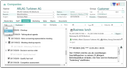
Tree view in activity sublist with detail form
For both views:
- The list or tree on the left are sorted in descending order by the start date,
- both views allow filtering by View, Period, Type, Maturity (Quick filter),
- an activity can be opened as a form via a hyperlink or the select function.
Details form to the right
- Activity type-specific, Outlook-style layout with a large field for notes, favoring important and avoiding less important fields,
- the sender of emails and the initiator of calls are displayed as an image,
- attachments and project assignments can be viewed (black expansion arrow if there are more assignments than fit into the field, otherwise gray arrow),
- Searching is only possible in the Note and Attachments fields here.
- Project assignment by means of a click.
- A "Private" flag (activities are invisible for other users).
Conversation
In any view, for an email that is part of a conversation, the conversation can be opened and viewed in a modal window. There is the Conversation button in the details form on the right. The button is only active if the email is part of a "real" conversation (there is more than this one email).
The conversation includes:
- in the header, the subject of the conversation,
- on the left, the list of emails (the source email is marked in color, distinction between incoming and outgoing email can be recognized by the symbol),
- on the right, the email details form.
Example use case – conversation
Finding within a project a conversation about the subject "x", and reading it:
- List view
- Quickfilter "Type" = all correspondences or customer communication,
- step through the history or search for email by subject,
- if the Conversation button is active, open the modal conversation form,
- walk through the conversation and read in the right-hand area.
Searching for specific attributes
Classification
The classification is useful to determine which activities have been routed to an area or a department. You can do this in the Classification field of the list view (field selector in the Quickfinder).
Type
The basic types (task, correspondence, memo, phone call, appointment) can be found using the Quickfilter Type. The Quickfilter offers other useful types.
Sybtype
In the Type field of the list view (field selector in the Quickfinder), you can search for activity subtypes (for example, training, holidays, etc.) .

Admin: The feature can be controlled by means of variables.PSA_ACT_TRE_MRK_DUP: Do you want duplicate activities (structure view) in activity trees to be colored in light gray?
PSA_SFR_ACT_TRE_FLT_FLW: Filter out follow-up activities in tree views on the first level.