With the personal calendar, you have extended access to the Entry Portal.

Personal calendar
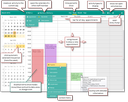
Personal calendar
The Open Calendar function (further functions can be found at the appointment) opens the personal calendar with the correct date, and displays it within the corresponding view (see variable).

Admin: The PSA_APM_PRS_CLD_VIE variable specifies the period as the view (DAY | WEE | MON | YEA) that is automatically displayed when the calendar is opened. The default is WEE.
Note: If you have set in the calendar that completed activities are not visible, or that certain types are hidden, then the selected appointment or activity will not be visible in the calendar.
You can also open the calendar from the Sales/Start/ ...c alendar menu, or directly from the Entry portal (calendar icon, rightmost in the icon bar).
The calendar days on which you are involved in an appointment are highlighted on the left-hand side. Choose a time period from the icon bar and click on any day in the calendar to see the appointments concerned.
When the mouse is clicked, a time period is automatically highlighted on the left depending on the time period selected in the toolbar.
The setting (gear) controls the display of "not open" and closed or canceled activities (appointments).
Opening and displaying appointments from the personal calendar
A double click on an appointment opens it in a modal window, allowing you to make changes already. Click OK to save the changes and close the window.
You can also click Open to have the appointment opened in the background in the CRM.
Alternatively, you can use Properties from the context menu that offers additional commands for working with the appointment.
New appointment from the personal calendar
By pulling the mouse pointer, you can quickly create an appointment directly at the position in the calendar where you started. The appointment will be created in a modal dialog where the date and time are preset from the mouse position.
Please note when saving:
- Save: The activity is saved, closed, and listed in the Entry Portal (record is not open).
- Save and open: The activity is saved and opens in the background in the browser for further processing.
Visit report from the personal calendar
In the standard, The context menu in the calendar contains the Create visit Report function that supports you with processing appointments.
In other activities, this function displays: "This function can only be performed on appointments".
Note: The "Fill out phone report" function for the context menu is available in the system and can be included through customizing if required.
Adding other employees' calendars ad hoc
- You can simply enter a name or description in the Add employee field, or use the familiar selection dialog via Add calendar.
- After applying, the contact or resource is ready in the calendar.
- Additional calendars can be shown or hidden easily, as well as removed (locking cross).
Tip: If there is more than one calendar, the activities of each employee are displayed in an individual, automatically assigned color (not in the subtype color).