Activity type

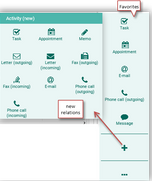
There’s a huge number of activity types in the CRM. The function bar lets you quickly create the desired activity with just one mouse click.

In various forms, you only need to click on the functions under Activity (New) or a favorite in the function bar to open the corresponding input form.

This way, you can create an appointment, a phone call, a task, etc., with a single click.

Converting an activity type

The decision for an activity type can often only be made in the course of creating the activity. Should the type not fit at some point, you can change it during editing or even afterwards.

Activity creation

Attention

Attention: You can only convert an activity if you are permitted to delete it because converting an activity effects exactly this.

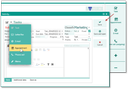
On almost every activity form, there is a small vertical arrow at the top left in the title bar. Clicking it allows you to select a new activity type from the available ones and start editing the activity right away.

Example 1

Suppose that you have created a task, "Please write an email to Mr. Doe containing the following: ....", and have delegated it to a colleague.

Then the colleague who receives this task can deal with it by simply changing the activity type directly to an outgoing email without

  • composing a new email and
  • having to close the delegated task.

Tip: If the task’s Subject corresponds to the email’s subject, and the addressee has already been set in the For contact field, then it is even more convenient for the colleague to quickly create the email.

Note: Please note that when converting to the "email" type, the standard signature is not automatically added to the body. Therefore, after conversion, you need to insert one of your standard signatures if required.

Example 2

Suppose that you are creating an outgoing phone call because you would like to make a non-binding appointment with someone. Nothing more than the topic of the appointment needs to be taken down.

However, in the course of the call, you agree on a specific planned appointment. So you immediately change the type of the activity from “phone call” to “appointment”.

Converting the type of an activity during its creation (a task becomes an appointment)

Source activity is automatically deleted after changing its type

Attention

Attention: The source activity (e.g., phone call) is deleted after changing its type. It is replaced with the activity of the new type (appointment). However, all data items that can be or need to be applied to the new activity are transferred to it.

This also applies to activities already saved in the system whose type is converted afterwards.

It is important to make sure that the source activity (e.g., task) doesn’t contain any information worth documenting, because it would possibly be lost in the process of changing the activity type.

Note: This feature primarily supports you with creating activities. It enables you to react flexibly to various kinds of situations in customer communication. However, changing an activity type should not replace the creation of a sensible history that includes the workflow of activities and their follow-ups.

Attention

Attention: If you subsequently convert an activity’s type, you should proceed with caution, especially if you are not the person responsible. So, for example, always create corresponding tasks as follow-up activities for an appointment instead of simply converting it into a task, even if the system allows this under certain conditions!

Ownership and access of converted activities

When a delegated activity is converted by the new person Responsible, ownership and access permissions are taken from the source activity. In addition, the system automatically checks whether the new responsible is permitted to delete the source activity.

Tip: In notifications for existing activities, the subject hyperlink works even if the activity was con­verted to some other activity type. The relations of the message are corrected during conversion.