The JustRelate CRM mailbox presents a mixed view of the groupware mailbox (Exchange) and CRM-based correspondence. This provides you with a groupware client integrated into the CRM, which should obviate the need for parallel work in Outlook. You can read incoming emails in the CRM mailbox in the groupware, import them with a click if required, send draft emails and edit appointment invitations. In addition, you always have an overview of all pending tasks, appointments, etc., in a to-do list.

The CRM mailbox

Admin: The mailbox is available to all users who have a valid Exchange Groupware configuration (Administration/Contacts/Groupware Users).
You can open the CRM mailbox via the main navigation (Sales/Start/Mailbox), the toolbar in the calendar, or the Entry Portal (in each case using the envelope icon). It opens as an external window, defaulting to a dedicated browser tab.
The CRM mailbox is based on the structure and functionality of common groupware clients. It contains all synchronized CRM-based correspondences (emails, letters, faxes) as well as drafts. All correspondences can be viewed and assigned to CRM contacts or projects. Follow-up processes (replies, follow-up activities, etc.) can also be initiated as follow-up activities.

Attention: The Entry Portal doesn’t display correspondences. Correspondences that have not yet been sent can be found in the draft view (Drafts) of the mailbox.
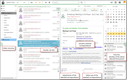
Basic functions – Inbox, Sent and Drafts
- On the correspondence icon in the toolbar, a counter displays the number of unread correspondences.
- A job imports new objects from the groupware and displays the number of unread entries in the top menu bar of the CRM desktop at the fast-access icon (envelope) that can be used to instantly open the mailbox.
- The entries in the correspondence list are grouped and displayed as multi-line entries.
- The toolbar allows you to filter by individual types as well as by unread correspondences.
- In the CRM mailbox, you can switch between the three views, Inbox, Sent, and Drafts.
- Inbox and Sent present the emails from the corresponding Exchange mailboxes and letters and faxes from the CRM, in descending order. You can adapt the filtering and sorting view in the list.
- Emails are displayed with their Read/Unread status (imported from Exchange). Unread emails are displayed in bold. If an unread email is marked in the mailbox and displayed on the right side of the form, its status changes to Read. The label can be changed via context menu functions. A button in the toolbar restricts to unread emails. Any correspondences that have not yet been completed or read are displayed in bold. As soon as they are marked or selected, they are set to Read (also in the groupware).
- Emails created in the CRM with the logged-in user as the sender (me) are automatically set to "Read".
- You can mark emails or mark them as done (toggle flag at the entry in the correspondence list or context menu) to track them better.
- Using the Import context menu, you can create cases or service calls from a correspondence via the email connector (opens automatically).
- The draft view shows only the emails created in the CRM that haven’t been sent yet.
- The period of time for loading can be set via Quickfilter (today - up to the last 3 months at maximum, default: one week). The Load more button successively reloads the set period.
- All views can be searched via the search field in the toolbar. The search is applied to Exchange and the CRM. The search is not an EUREKA search but searches predefined fields (subject, sender, recipient).
- Emails sent from the CRM are displayed in the outbox (Sent) of the groupware.
- An integrated to-do list below the calendar shows activities in the period marked above, grouped by date and escalation.
- Internal employees can set the mailbox as the start mask in their device settings.
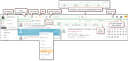
CRM mailbox, basic functions
Sent emails
E-mails sent from the CRM are also displayed in the outbox of the groupware.
Admin: You can activate this feature for the relevant users or for the WORLD by means of the PSA_SND_EMA_USE_GWC variable. Then, sending an email from the CRM takes place via the API of the groupware connector to the outbox of the groupware. If the variable is deactivated or not present, then the communication is performed via SMTP, and the groupware is ignored. This applies to sending via EWS/Google.
Presentation of marked emails
- The content of marked emails is displayed in a message preview on the right-hand side.
- The header of the emails (except emails from the JustRelate CRM inventory) is automatically hidden in the message preview, so there is more space for previewing.
- The header info is always visible in the message preview header.
Importing emails
Emails can be imported to JustRelate CRM automatically (e.g. via the CRM mailbox) or by yourself. You can either click on the Import flag (check in with a click on the JustRelate CRM icon at the far right of the list entry), use the import function in the context menu, or execute functions such as Project Assignment, Reply, Reply to All, Forward, Create Follow Up etc.
Note: The "Import" context function offers the dialog of the email connector. With it, you can, for example, deselect attachments (documents, images) or create other assignments.
Note that answered or forwarded emails are automatically imported to the CRM in any case, even if you cancel the operation.
Reply, Forward opens emails for processing in a modal window. If the email has not yet been imported (no import flag) and the reply is cancelled, the source email is still imported and can be replied to later.
Admin: The import process and the Reply and Forward functions are not executed in a transaction. If you cancel them, the email is imported anyway (if it was not imported before).
Imported emails have an import flag set. A button in the toolbar allows you to restrict the view to imported emails.
Automated email import
For the automatic import, there is a “queue” in the form of an intermediate table, which is supplied by the GRW_IMP_EMA job with the emails from the CRM folder of the groupware and at the same time from the standard inbox of the groupware.
The queue is also supplied with entries if a user in the CRM mailbox manually imports, replies to, forwards an email, assigns a project etc. Such entries are marked as "prioritized".
The job PRC_EMA_IMP_QUE processes the queue and imports the received emails to the CRM.
- Emails with a priority flag are processed immediately so that there are no delays in manual import.
- Emails in the queue that are to be imported are grouped (e.g. with several Exchange mailboxes), so that several jobs can run in parallel for processing.
- Manual import to the CRM initiated by the user in the CRM mailbox is prioritized and is executed immediately from the queue to the CRM.
Presentation of unknown contacts, contact mapping
Unknown email addresses can be assigned to a contact in the CRM using a hyperlink. This is also supported in the mailbox. Thus, the email in the mailbox is also imported automatically.
In the contact fields (Sender, To, Cc) of an email, unknown email addresses are displayed in red color. By clicking (the hyperlink) on the unknown email address you can assign an already existing contact or create and assign a new contact, just like in the email connector.
For an unknown (red) email address, the company and its employees are determined based on the domain and are loaded into the contact selection. This makes the following possible:
- You can select a contact where no email address is present yet; after the assignment, the unknown email address is entered at the contact after a prompt.
- If the email address is transferred to a new person, then the part before the @ is preset as the name. If the email address is transferred to a new company, then the part after the @ is preset as its name.
- If the email address is transferred to a new company, the part after the @ is preassigned as its name.
Note: The suggestions refer only to the main company. If the email matches but the company is not assigned as the main company, the employees will not be displayed as suggestions.
After the assignment, the system automatically, i.e. without prompting, ensures that all correspondences that use this email address also receive this contact assignment.
Attention: You should correct unknown sender email addresses immediately before checking in, and, if possible, assign them to a specific contact. Otherwise, except in the mailbox, you can hardly recognize from emails whether a sender email address is still unknown.
Tip: If there is only an email address and no specific contact in the sender field of an email, it is usually a sender that has not yet been assigned.
§ GDPR: When registering new persons, you must comply with the GDPR and data protection! See GDPR-compliant registration of persons.
Admin: To display the email address, the sender field (the contact component) is modified on the dialog level during loading.
Settings
In the Server groupware configuration (My data) you can specify by means of a checkbox:
- whether emails from the Exchange inbox are automatically imported to the CRM,
- whether only the CRM folder in Exchange should be imported to the CRM,
- both
- or neither.
In the latter case, emails can only be imported manually (by setting the checkmark in the CRM field in the mailbox).
Admin: In the "Groupware User Management", you can set these flags globally.
Appointments
The CRM mailbox also displays all appointment notifications received from Exchange as notifications. These are, e.g., appointment invitations, acceptances or cancellations. They are marked by separate symbols and offer all functions for appointment processing in the detail area to the right. As an appointment attendee, you can reply to invitations (accept, accept with reservation, decline, suggest a new time) or, as an organizer, you can view the replies to your invitations, delete them and process time suggestions.
Appointment synchronization via the CRM Groupware Connector ensures that all appointments to which the notifications refer exist or are imported in the CRM. These are either appointments created by CRM users in the CRM or in the groupware, as well as external appointments.
External series appointments
JustRelate CRM also processes serial appointments that have been created by external contacts and were transferred to the CRM via Exchange. Importing an external series appointment from Exchange creates corresponding individual appointments in the CRM. All IDs delivered by Exchange, which are necessary to be able to update changes to the appointments in the CRM, are stored.
These individual appointments are locked (read-only) because the person responsible is an "external".
The appointment invitations appear in the mailbox as notifications marked in blue. Cancellations, acceptances etc. are possible from the mailbox and in the individual appointments themselves.
Note: Please pay attention to“external contacts” here, and do not confuse external series appointments with JustRelate-CRM-based appointment series, which have a configurable series type. Series appointments are displayed differently in the CRM and Outlook.
Tip: If you want to create an appointment series for Outlook yourself, it is best to create the appointment in the CRM and have it synchronized from there to Outlook. To do this, first create a normal appointment in the CRM and make it a series, which will then be synchronized to Outlook.
Changes to the whole series must be made in the CRM. If it is only about a single appointment, then you can also do this in Outlook.
To-do list
The to-do list on the right includes by default all scheduled tasks, phone calls and appointments on the current day or in the selected period for which the logged-in user is responsible or involved. The present period can be controlled via the calendar above. Details can be accessed via QuickViews or a hyperlink.
Notifications
Notifications from the Exchange server such as "undeliverable" and similar ones are treated as emails and are recognizable by an error symbol (yellow triangle).
Performance
The sessions required for the update to check the Exchange mailboxes are obtained from an existing pool. This saves initialization time and improves performance.
The mailbox is refreshed for emails and to-do lists. It is initialized when it is first opened and then refreshed automatically every 15 minutes if auto-refresh is active. Manual refreshing is possible at any time via the search function (F5).
Functions that place a heavy load on the system and do not require any interaction (such as the creation of follow-up activities for several marked emails) are executed in the background.