Note: Before you register contacts, please make yourself familiar with automatic duplicate checking, especially if there are already contacts in the database.

Automatic duplicate check when entering contact data
§ GDPR: When registering new persons, you must observe the GDPR and privacy! See GDPR-compliant registration of persons.
When capturing contacts, the system automatically checks whether they already exist in the database. The duplicate check is always performed automatically in the background, no matter whether contacts are captured individually (usually by hand) or a so-called batch import (several contacts) from other databases, from the Groupware, or through comma-separated lists (CSV) is taking place.
When capturing person contacts, all name components are recorded in the search.
After the imported data has been evaluated, the duplicate check dialog is opened if duplicates were found, otherwise the modal contact form. For contacts originating from the groupware, and that are known to the CRM because of their groupware ID, and that are more current in the groupware than in the CRM, for example, you will be asked whether they should be updated.
Handling duplicates "Deleted according to GDPR"
§ GDPR: For how a duplicate that has the "Deleted according to GDPR" status is detected and what you can do, see Deleting personal data.
Handling and merging duplicates
If the system finds contact duplicates when creating or importing contacts, you can compare the attributes of the selected contact in the duplicate dialog, and merge them. Data that matches is highlighted in this list.
Note: The advanced duplicates dialog is also available in the contact import tool.
You can accept a selected (marked) contact via JustRelate and edit or merge its attributes as needed. Ignore creates the new contact and lets you edit it. Cancel aborts the whole creation process.

Admin: The threshold for the detection of the email address is raised. The composite field CMP_NAM is used for the name check, which provides a secure check for the first name and surname (not the individual fields FST_NAM, NAM). To check only relevant parts of the name, the salutation, additions and titles are filtered out in addition to the duplicate dictionary.
Merging contact attributes after an import
If a duplicate was found after a contact import (groupware client, card scan, or ClipIX from an email signature), and you want to keep and update this contact, follow these steps:
- Mark a contact (Master in the CRM) at the top of the duplicates list.
- Click on PisaSales to open a modal, dynamically generated dialog that compares the data of the master and the created or imported data.
- In the dialog, please check the data provided by the interface, correct them and decide using radio buttons which fields should be overridden in the master. Editing and assigning multiple addresses are also supported.
- Confirming the dialog (OK) only changes the data shown in the dialog and updates the master.
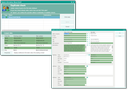
Automatic message if duplicates are supposed
Manual duplicate resolving by the account manager
For every user who is responsible for a contact (e.g. an account manager) to be able to resolve duplicates (independently of the contact admin), manual duplicate handling gives extensive control over the field attributes of the master and the duplicate.
In contact forms, you can find the Duplicate check function in the function bar. It enables you to perform a duplicate check for the current contact. As a result, the system can find similar contacts so that you can consolidate them if required.
You will find the Open master, Reset and Clean-up functions in the Duplicates submenu next to Duplicate check. This enables you to find, merge and delete duplicates. When merging (cleaning-up) duplicates, an extended dynamic field comparison dialog is available to you.
Duplicate check
A manual check can be performed for a contact to determine whether duplicates exist, and to have them displayed automatically. If the contact itself is a duplicate, the duplicate dialog shows similar or identical contacts. If you now know that the original record is already present, you can mark it and confirm it as the master.
You will be asked if you want to set the selected CRM contact as the master. Due to the additional output of the contact number in this message, the difference between two similar contacts becomes clear because the new contact (with its number) is still visible in the background.
Open master
Duplicates usually result if an identical record (master) already exists. This function presents the master without opening the duplicate dialog for comparison.
Reset
Write access will be checked first, and then a query is made, Reset duplicate permanently?. If you confirm this, the contact in question will no longer be checked and identified as a duplicate during subsequent duplicate search runs.
Clean-up
This first checks for delete access for the duplicate and write access for the master, then all data on the master will be merged. During merging, the system checks for conflicts and, if necessary, opens the familiar dynamic merge dialog.

Attention: Strictly speaking, this is an administrator function. For merging the data, it disables access to the contact and thus overrides any access restrictions that normally protect the contact from manipulation.
Affected changes are signalled
Prior to merging (cleaning-up), the system determines the number of the contact’s assignments that are expected to be changed (e.g. relationships or components). This number is presented to you as a warning together with a security prompt. This signals to you that merging modifies an "active" contact in processes etc., whereby "too many" assignments of the contact to data records may also be changed.
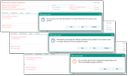
Automatic notification of suspected duplicates and merges
Provide an ad hoc list for cleanup
This allows an account manager to collect contacts to be cleaned-up in one or more ad hoc lists (More Functions, Add to ad hoc list for account manager) and pass them on to the contact administrator for cleaning-up.
See also: Administrator, Contact data resolving
Batch import
§ GDPR: When registering new persons, you must observe the GDPR and privacy! See GDPR-compliant registration of persons.
If several contacts are captured in a single step, e.g., via an import with a card scanner or from the Groupware, a duplicate check takes place as well.
Depending on the CRM version you have installed, the duplicate check can also be run in the background. In contrast to individual entries, however, you do not receive a duplicate note for each contact, but the system first automatically decides whether potential duplicates were found in the database and marks them (colored strike-through). The records identified as potential duplicates can then be handled manually.
Admin:
- For all interfaces, a defined set of the fields to be compared is defined. A customizer can include additional fields or remove existing ones.
- Your administrator or customizer can adapt the duplicate check according to your requirements and adjust contact data. Contact your JustRelate CRM administrator if you have extensive duplicates. He has additional tools available for duplicate checking and resolving potential duplicates. Only the administrator activates the automatic duplicate check, and adjusts duplicate check settings such as Search depth and Duplicate dictionary.