HTML editor

Fields for freely formatted text

Selected modules offer so-called CLOB fields. “Character Large Objects” are note fields, comment and text fields marked as such by the server. Primarily you can find such editor fields in activities like tasks, phone calls or emails. The text in these fields can be freely formatted as HTML markup. For this purpose, the inte­grated JustRelate CRM editor is available that allows you to conveniently edit text in HTML format using system colors and fonts.

The HTML editor is available in the web client and in the mobile clients (Tablet or Pocket). It displays HTML content in editor fields and lets you format text with the help of mini toolbars.

  • Font markup (bold, italic, underline, text color, background color)
  • Ordered and unordered lists,
  • Blockquote
  • Insert images and links
  • Execute CRM object links
  • Switch between HTML and plain text
  • Table handling
  • Image positioning and scaling
  • Cut, copy, paste content

The clipboard and standard commands for saving, printing, pasting images, etc., are supported.

Info

Admin: The HTML editor is not available in the Windows client. However, the Windows client has been updated to be able to handle the extended CTT field format specifications. For this reason, it must be rein­stalled in the rare case of mixed operation (web and Windows client). Otherwise, HTML content created in the web client editor will be displayed as HTML code by the old Windows client in certain situations.

The editor support for Tablet and Pocket can be switched on and off globally via the server variable PSA_CFR_PAD_HTM_EDT.

Please note that the Windows client is not developed further and is no longer distributed.

HTML content

A neutral internal HTML mapping ensures the correct display of HTML content that is generated outside and imported into the CRM (e.g. emails).

Note: The HTML editor of the CRM does not replace a full-fledged word processor, but it provides features that support you with designing attractive texts, and that can automatically present data from the CRM data­base (object links, placeholders).

Tip: If you paste formatted text from the clipboard to an HTML field, the system tries to retain the original formatting, which is not always successful and may not be desired. In the context menu (right mouse button) of the Chrome and Opera browsers, the command [Ctrl+Shift+V] is offered for inserting text from the clipboard unformatted (plain text). Other browsers like Firefox can only do this with an additional add-on, e.g. "Copy Plain Text 2".

The toolbar is an integral part of most forms (emails, tasks, etc.). The text itself can be edited and formatted directly in the field without creating a separate document. This allows comments, emails or visit reports to be designed in a meaningful way. You can use the standard print function of the CRM for printing.

Presentation of emails and printout from the editor

Emails are usually created and received in HTML format. After an incoming email has been checked in, it is initially displayed in the HTML field of the email form without images, but these can be reloaded in the CRM mailbox.

Emails are printed directly from the HTML field in the format that the field displays.

You can always display HTML e-mails correctly by opening them in your Internet browser by clicking on the hyperlink in the Subject field. You can then print them from the browser in the correct format if required.

Alternatively, use the key combination [Ctrl+P] directly from the HTML field of an open email to print it. It does not matter whether you have write access to the email or only read access.

Note: You need to click directly in the HTML field and then use [Ctrl+P] to call the print function of the HTML editor. Otherwise, the report wizard for the record will be opened.

Info

Admin: The variables PSA_DEF_CTT_FMT_APM, PSA_DEF_CTT_FMT_CAL, PSA_DEF_CTT_FMT_CPD, PSA_DEF_CTT_FMT_MEM and PSA_DEF_CTT_FMT_TSK define the default text format for appointments, phone calls, emails, memos and tasks.

Admin: iFrames are removed for security reasons  

In the CRM web client, <iframe> elements are always removed from HTML texts for security rea­sons. If the web client finds an src attribute, then it creates an <a> element with a suitable href attribute instead.

Info

Admin: To further support the integration of applications whose integration is only possible via an iframe (e.g. Echobot), the style X must be entered on the CTL tag, i.e., on the control of the integrated dia­log (in the case of Echobot: style X on the CTL tag in PSA_ORG_ECH_BOT_SSO).

HTML editor for correspondences

Especially in customer communication, e.g., via email, the HTML editor supports you with flexible for­matting options and customizable templates.

In addition, you have templates available that allow you to insert placeholders, e.g. for the salutation, signature or other communication data.

To make it easier to work with your own templates, JustRelate CRM provides simplified template manage­ment for end users (non-template administrators).

See also: How to create your own templates using placeholders: Correspondence templates with placeholders

Extended editor with advanced toolbar and mini toolbars

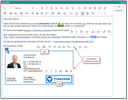
The editor offers a basic mode in the web client, providing all functions in the toolbar, which are needed, e.g., for quickly creating and formatting email texts, similar to common email apps such as Gmail. If more formatting functions are needed, use the Open full button or the [F2] key to open a sepa­rate editor window with an extended toolbar. In addition to the extended toolbar, you also have context-sensitive mini toolbars here. 

Tip: If you wish to create or edit a complex text, open the extended editor (F2) right at the beginning if possible.

JustRelate CRM editor with extended toolbar and mini toolbars

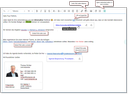
In the editor toolbar of the HTML editor, there is a drop-down menu (choice box) with an input field for selecting the font and font size. You can enter several initial letters or numbers in these menus to navigate quickly.

In the extended editor, there is a button function for font and font size in the mini toolbar (bubble) for marked characters with a subsequent menu, but no input field. In contrast to the menu in the editor toolbar mentioned above, only the first character typed is taken into account when navigating quickly.

Note: As there is no input field in the mini toolbar where you can enter character strings, it is not a fault not to include more than one character. In this case, it is more ergonomic to enter only one character for the start navigation and to navigate through the following selection options.

Spell check

The web client uses the corresponding functionality of the web browser for spell checking. This requires that the web browser used has the correct settings and dictionaries.

Dictionaries and language packs are available as add-ons for Firefox. You should check whether the appropriate language packs and dictionaries are installed.

  • https://addons.mozilla.org/de/firefox/language-tools/

For browsers from the Chrome family (Google Chrome, Opera, Vivaldi, etc.), the spell checker can be configured via the browser settings (chrome://settings), and you can also download additional languages if required.

Customizing the editor  

CLOB field with or without toolbar and mini toolbars as before via dialog style = T

CLOB field with or without placeholder functionality: If the placeholder functionality is active, you can control via the text format in the format column of the CLOB field whether the placeholders are displayed as values or as keys (placeholder names) when they are opened for the first time:

   •   Format = T:H → without placeholder functionality, tab minus tab
   •   Format = T:V → with placeholder functionality, value representation minus space
   •   Format = T:D → with placeholder functionality, placeholder representation minus and a tab

In the standard system, CLOB fields at activities have the following format specification:

   •   Email: T:P,V,R Tab Tab Minus
   •   Serial email: T:D
   •   All other activities: T:P,H

JustRelate CRM editor for text input and formatting (email)

If you link texts or images using a hyperlink, always enter the complete URL (e.g. "https://www.example.com"). URLs without the http(s) protocol are not interpreted correctly.

You can simply click URLs in the HTML field to open the hyperlink from the speech bubble.

Note: Alternatively, you can open a URL by simultaneously holding down the [Ctrl] key (new tab) or the [Shift] key (new window) when clicking on the hyperlink. 

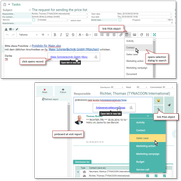
In the CRM editor, but also in the pinboard, any CRM objects (document data records, contacts, activities, processes, etc.) can be linked so that you can navigate to them directly from the text, as with a hyperlink. The link can be inserted into HTML texts using the Link CRM object toolbar function. In the pinboard, the Insert object link button function (paper clip) is available.

CRM Object link in the editor and in the bulletin board (here visit report)

You can then execute these links not only from within the CRM but also externally from other applications (e.g., from an email generated in the CRM or from a Word or PDF report generated in the CRM). When executed from other applications, the link opens the default browser, and you are routed either to your already open CRM session or to the CRM log-in screen.

In the selection for creating and inserting an object link, the "Last used" entry is available in the first position. In this case, the link does not point to the "Last used" list, but to the original object selected in the selection dialog, where you can use Properties, for example, to uniquely identify the object beforehand.

Tip: The combination [Ctrl+Click] on an object link in the CRM opens the target with just one click, i.e., without using the link bubble.

Admin / customizer: Adapting object links  

The following environment variables must be set:

PSC_CMN_WEB_LGI_URL = The URL of the web client
PSC_CMN_WEB_LGI_APP = Name of the login set

  • An overload for the group "0" makes sense.
  • A web client must be reachable under the given URL and the login set must be known there, otherwise the gen­erated links will not work.
  • Note: If the URL changes later, e.g. due to a change in the IT infrastructure, it is possible to redirect to the new web server    using suitable re-directs. This is the task of the IT department of the operator (the customer, if on premises).

Special environments

For special environments such as clusters or VMs, separate measures may be necessary to correctly identify the target environment.

CRM object links in templates and reports

  • CRM object links can also be inserted into reports. An example of the use of this functionality can be found in the CRM visit report at an appointment. It contains, e.g., object links to the responsible person, appointment attendee, main project and attachments.
  • For generating, a field for the link must be included in the field filter in the report loader (e.g., PSA_DOC.PSC_GID). C:LNK needs to be specified in the format. The web client will then generate a link that can be used in BIRT. For report developers working with the Windows client, the general URL of the web client must be placed in the variable PSC_CMN_WEB_LGI_URL. Otherwise, the Windows client will not generate a link.

In the HTML editor, you can also insert an object link to an activity pinboard (object selection: "Activity pinboard"). This allows you to open the pinboard directly, saving you the detour via the case to the pinboard.

Info

Admin: A function call is used for the link to the pinboard, because the object link determines the target dia­log dynamically and thus always opens the master form.

When inserting object links to cases (sales case, service case, service call), you will find the Customer field in the selection lists.

With object links in the visit report pinboard, the selections (service call, case) are preset in the case with the customer notifications or cases from For contact or from Customer, respectively.

Info

Admin: If the customer component is present in the DTO, it will be dynamically inserted as the last column in the selection. No change is made to the data object. This applies to all project CHC and MCH selections.