You may want to create a bookmark for JustRelate CRM in your web browser to make it easier to open the login page.
- After opening the URL, the CRM start screen appears.
- Check your login name, enter your password (mind capitalization) and click Login.

You may want to create a bookmark for JustRelate CRM in your web browser to make it easier to open the login page.
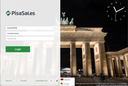

Admin: The client sets can be edited via the administration URL in the web browser. However, you should always review these settings with the administrator.
For customizing the background images in the login screen if required, please get in touch with your JustRelate project engineer or refer to Background images of the login screen.
By clicking on the small i on the start dialog you can obtain various technical information and, among other things, Resources to generate login settings as a URL and use them as a bookmark, for example.
If you log in to the CRM for the first time, your system administrator can allow access to the system without a password, or you can use a predefined password. As soon as you are in the system, you can pick your own password. To do this,
The login screen offers an ad hoc language selection option for the duration of the session (globe button). You can temporarily change the language for the session, e.g. for screen sharing, meetings or demos. Afterwards, the title texts in the login mask (username, password, ...) change. After the connection is established, the client sends the selected language to the server, which sets the interface language and user data language for the current session. The central language setting in the database is ignored for the current session.
The language setting in the login screen is not persisted. The default language is derived from the browser's language setting. Without selecting a language in the login mask, no explicit language is transmitted to the server either.
You can permanently change the interface language via the My languages profile menu (requires loggin in again).
Admin: The language selection list can be configured on the client (web server). It contains the language name and an associated icon (flag). By default, the list contains GER and EN (or EN-US). Additional languages can be specified by an administrator on the web server. They need to ensure that the language list matches the languages supported by the server.
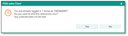
Multi-login warning
When you log in, the system checks if you are logged in already. If this is the case, a warning is displayed, and you have the option to terminate the sessions that are still running.
Admin: The feature can be switched off via the variable PSA_CLI_CHK_DBL_LGI.
After logging in, a welcome screen is displayed (web client only) where users (especially those new to the CRM) can watch an introductory video (English) or access the CRM Academy (access data required). The video shows first steps in the CRM system and how to find relevant information in the CRM academy. The checkbox "Do not show again" disables the welcome screen for subsequent logins. Some attributes of the welcome screen can be customized by the administrator.
Admin: The variable PSA_FST_STP_SHW can be used to globally specify whether the dialog should be opened. If the corresponding checkbox is set, this variable is set to n. The variable PSA_FST_STP_HTM can be used to define the HTML markup to be displayed in the dialog. <html> and <head> are added by the server. By default, this is the embed code for the iFrame containing the video.