The Chronos tab is offered in the CRM standard as a second tab behind the master data of some selected forms.

Chronos history
Chronos is a compact representation of the customer and case history. It shows in a grouped list on the left all assigned objects, such as activities, cases, documents sorted by date, and the matching object-specific detail forms on the right. Chronos is particularly suitable for user groups with predominantly read access.
User groups with predominantly read access can hide the tabs of the sublists (relationships) if required, and thus work with a very clear interface.
In the first place, Chronos illustrates the life cycle of an object, e.g., that of a customer.
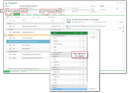
Chronos in the company form
Visibility of other subtabs
In all Chronos-related dialogs (Contacts, Sales, Service, Objects), the tabs that have become redundant are initially hidden. For this reason, only a few tabs are displayed in master forms with Chronos after the first start, e.g., in the company form only the "Master data" and "Chronos" tabs.
Chronos is intended to be a compact representation of the customer and case history, initially offering you a clear interface with a few sub-tabs. If required, you can show additional sub-tabs for dedicated viewing and editing of, e.g., employee, activity or document assignments.
The availability of tabs to be shown or hidden can still be set via the "Personalize" dialog (gearwheel in the toolbar) and subsequently reopening the corresponding mask.

Admin: The display is controlled by the parameter string of the INI_TAB_VIS dialog tag. The TAB_VIS parameter specifies the initially visible and hidden tabs. The FRC:=N parameter instructs the client to remember user-specific tabs across sessions. With FRC:=Y, the repository definition would have priority.
The INI_TAB_VIS dialog tag can also be used in the process of customizing to control the tab visibility in other dialogs.
List of assigned objects in Chronos
- The list shows all assigned objects to which the user has access, regardless of which user or service made these assignments.
- The list is sorted by time in descending order. The date field (Chronos date) is supplied on a per-object basis
- for transaction data with the creation date or with the start date of an activity (not with the date of the assignment),
- for master data with the last processing date, where no weighting is applied regarding the attribute that has been changed. - In the Additional data field, important attributes are displayed, separated by commas, e.g., status and type.
Tools for limiting the list
Structured filter selection (Filter button in Chronos tab)
The filter lets you restrict objects on three levels: activity, documents, and case. With activity, either by type or by classification, with case by type. The offered objects depend on the user profile.
The filter presents the hits (number) per entry. You can deselect the object that has a large number of hits but is of no interest to you, which limits the number of hits significantly.
Show last version only – versioning is only available for documents and projects or cases, meaning that only the latest activity version, the latest document version or revision is displayed.
The "by type" and "by classification" filter conditions can be combined. The result is an AND combination of both conditions. If you select flags from only one category, an error message is displayed.
The filter selection is stored across sessions and per user. The filter icon is colored if a filter condition is active, meaning that there is at least one deselected object in the object list, or the "Show last version only" filter is set.
In the history, you will see immediately that there is a restriction.
Quickfilter
View, Period and Maturity can be selected for restricting the list further. The default of the quick filter period is set to "-/+ 30 days" for practical purposes, so that the loading times are acceptable even without user intervention in case of higher latencies. As an exception, no default restrictions are applied for documents.
Note: Check the View quick filter if there are longer loading times. Loading the history of an entire group can lead to a large number of hits under certain circumstances.
Detail forms
The Chronos list also shows details of the selected record on the right side of the detail form, including the functions for quickly creating follow-up activities.
Admin: The structured filter selection is configurable. In the "Administration/Tools/Chronos filter definition" list, for example, another classification can be entered.
For other extensions, e.g., for adding customer-specific objects to the Chronos, implementing the Chronos for other objects, or providing an additional data field with other attributes, please reach out to your JustRelate project engineer.