Messages

Messages are an internal means of communication in the CRM. There are messages created automatically by the system, and those that are initiated by a logged-in user.

Almost all modules offer the Message function. With a message, you or your internal employees are automatically reminded of deadlines, tasks or events in good time. Messages can be used to distribute internal messages to employees. For this purpose, internal persons or mailing lists can be assigned directly in the input dialog of a message.

Using the Message function in the function bar of a data record, you can define a scheduled message for yourself as a reminder, or additionally for other internal employees as a notification that opens a dialog for the recipient at the specified time.

Attention

Attention: Messages are purely an internal means of communication and are not binding tasks. Always define binding tasks etc. as verifiable activities with due dates and responsibilities.

In activity management in particular, messages are initiated automatically relatively frequently, e.g.:

  • for status messages when delegating,
  • when appointments are synchronized automatically

Incoming messages, including the login

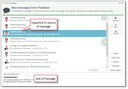
If there are several messages, then the message system displays a list of messages. The message list can also be switched between compact and normal view in the popup.

From a message, the recipients can jump directly to the object where the message was created. You can reply to a message or be reminded again or create a task straight away.

Clicking on the message subject opens the message in a modal window so that you can read the message text in full before jumping to the object concerned.

If you store or reply to an open message, or use the hyperlink pointing to the referenced object, the status of the message is always automatically set to Stored, independently of the status of the referenced object.

Just like esca­lation messages, automatically created delegation messages (you have become the responsible …) are automatically deleted by the system after acceptance, rejection or execution of the activity.

Alternatively, you can access the “My messages” list. You can also manage open (sleeping) or stored messages in the “My messages” list. Switching the status of a message in this list does not affect the related object (if one exists) and vice versa.

Note: If the pop-up of a message is confirmed with the Enter key, the message will reappear after the entered time (5 minutes by default). ESC and Exit also cause a reminder and not that the message is stored or held.

Hold out

Closes the dialog and saves the message in My messages. It is then open and displayed regularly by the system.

Store

Closes the dialog and stores the message in My messages. It is no longer open but can still be viewed at any time.

Delete

Closes the dialog, the message is deleted and not available any longer.

Reply

Closes the dialog and creates a new message with the text of the source message.

Forward

Holds the message and creates a new message with the existing content as forwarding.

Define new task

Closes the dialog, saves the message and creates a task. If the message was created in the context of an object, this reference is created in the task.

Show again in

Stores the message for the time being. The time period after which the message should appear again can be selected in the lower time field. Only the specified time periods are available for selection.

A message can be defined as a general message without reference to a data record (function Message (new) from the My messages list). The recipient then has no hyperlink at the subject.

Note: When doing this, no message record may be marked. If necessary, switch from the compact to the simple list view, which allows the non-select mode.

Messages are also created automatically by the system, for example when activities are monitored. If a due date is exceeded or an activity is delegated or deleted, the agents and teams of the activity will receive a corresponding message.

Message counter

Messages sleep and pop up at in a dedicated mask at the defined point in time. The number of new and not yet stored or unread messages is displayed in the message counter (top right next to the profile menu). If the status of a message changes or a message is deleted, the open messages are counted again and sent to the client.

Info

Admin: For this purpose, the server sends a client event action to the client when the message status changes (triggered by the respective client), with the client command UPD_IMC and the number of messages as parameters.

Clicking the counter (speech bubble) opens the My messages list.

Creating a message at a record

  1. In the corresponding form, select Message on the right side  of the function bar.
  2. Assign one or several recipients if you want to send the message to other contacts. When you create a message at contacts, tasks and activities, the recipient selection is preset with the internal staff from your contact list or contact relationship list as a suggestion.
  3. Alternatively, you can enter your own name if you want to create a reminder for yourself.
    Tip: Enter your initials, your first or family name, or your email address, and hit the tab key for automatic suggestions. The initials must have been set as a paraphe in the master data of the internal employees.
  4. If necessary overwrite the Subject, the hyperlink to the reference will be kept.
  5. Enter the desired text as the Description.
  6. If necessary, select the point in time (date and time) at which the message should be displayed to the recipients as a popup. Click the Message on field, or use the calendar at the field selection arrow.
  7. Click Send.

Note: The message is now stored for the responsible employee (account manager) and the internal employees assigned as recipients and appears as an information dialog for the relevant target account at the specified time. If several messages have been accumulated, the information dialog shows a list of all accumulated messages.

Blind copy as a receipt for a sent message

Each message is automatically sent together with a blind copy for yourself. In the My messages list, you can then use the Status/Sent on quick filter to filter all messages you have sent.

Info

Admin: The variable PSA_RSM_OUT_BOX lets you set the default of the blind copy. The default of the check box is “active” (y).

A message flag indicates messages in the message outbox. The "Sent on" fil­ter looks for this flag. The other filters (Message Inbox) will only find messages without this flag.

“My messages”

You can open the My messages list of your messages and reminders using the message counter (speech bubble in the top menu) or from the profile menu. The list from the counter immediately shows you all unread pending messages. If you open the list from the profile menu, on the other hand, an empty message list appears in which you can search for entries using the Quick­finder and Qickfilter.

Using the Status select menu in the list, you can select the type of the messages to display. To store these mes­sages as needed (so that they do not appear as open at the next start of JustRelate CRM), select the corre­sponding entries in the list and use the Store function. To delete them, it is likewise sufficient to select the messages concerned, and to use the standard Delete function.

In the message list, you can easily find messages if you have questions such as “When did someone deliver a message?”, “When did I store a message?”, or “When did a specific employee deliver a message?”.

For this, the message list offers several features:

  • The “Period” and “Status” Quickfilters with practical entries and a filter condition that matches the entries (delivery date, filing date, creation date).
  • Date fields in the Created, Delivered, Stored list (classic list).
  • Employee selection in the Quickfinder of the From field to search for messages from a specific employee.
  • Functions Reply, Reply to all, Forward.
  • Using the Telephone call select function, you can immediately communicate with the internal contact of the marked message via CTI.
  • Compact list view presentation of the message list.

Setting the sender of the automatic message service

If the message from the automatic message service opens modally, e.g. for a task reminder, the sender is not necessarily displayed in the modal window.

Info

Admin: Thorugh the PSA_INT_NOT_DFV_CRE_PRS variable, a standard user can be specified that is displayed as the sender.

Messages as push notifications

You can activate messages as push notifications on all devices using the device configuration in My Data.

All messages will then be pushed immediately (without job) and appear instantly on the device. Delayed notification (with time specification) is then not possible.

The notification is sent to public servers for dispatching it. The devices retrieve the messages via a mobile data connection, if one is available. No configuration is required for this.

To not have to wait for external services, the push notifications are sent asynchronously in a sepa­rate thread.

Notification in a smart window

JustRelate CRM notifications are displayed in the client as an info dialog when a session is running.

Notification in the browser to signal a message

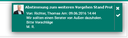
If there are several messages (multi-message), the notifications are displayed one after the other. If the user does not react, the notification disappears automatically after a few seconds. If the mouse pointer is placed on the notification that has appeared in good time, the message does not disappear, and there are several options for dealing with it.

If a JustRelate CRM session is started and there are messages on hold or set as reminders, no notification opens, but the familiar message popup or the message collection.

  • If you click on the message text (hyperlink) in the notification, the message is opened as a popup in the system and can be "edited" further.
  • If you click the subject (hyperlink), the object in which the message was created is opened.
  • If you click the cross on the right hand side of the notification, the message is stored in the My messages list on deposited.
  • If you click the little check mark on the right hand side, the message is placed in the messages list as discarded.
Info

Admin: If necessary, you can disable the push notification by means of the user-specific variable PSA_CFR_P­SH_NTF.

No messages to employees without a valid login

With JustRelate CRM, it is also possible to manage employees who do not work in the CRM system.

Messages to employees without a valid login are rejected as soon as they are created. Inactive or blocked employees can also not be selected in the message dialog.

Info

Admin: The selector and the selection dialog now set the additional search condition CIC>2.

Partially block automatic messages

In order to contain the possible “flood” of messages caused by the automatic synchronization mechanisms for every intended or automatic update of emails and appointments, messages are only generated when an email is initially imported, for example, and not when an update is made.

Info

Admin: The import handler has been adapted. No parameterization was implemented. Adjustments can be made through customizing.