You can terminate the web client session via Profile menu/Logout. The program then performs the following operations automatically:

Exiting JustRelate CRM and storing the work status
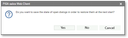
Query for saving the work status
- If a mask is still in edit mode, a dialog appears asking whether the changes should be saved.
- The system asks whether the status of the currently open forms should be saved in the client and restored at the next login.
The query can be set per user via the variablePSA_EXI_GUI_SAV_DLG_STAor in the Device settings dialog that can be opened under My data. - When closing, the system processes the response given and closes the CRM window.
Note: The server is not stopped automatically when the JustRelate CRM system closes down.
- Tip 1: Windows with open modal masks should never be closed unchecked!
This is the case, for example, if the calendar is displayed in the external window or tab, and the properties dialog of an appointment is open, or the CTI mask was opened in the main window by an incoming call.
If you - despite having been notified by the browser - explicitly close an external browser window or tab or the main window, in which modal masks are open, then the system will terminate the session to maintain stability. This behavior is intentional, as neither the web client nor the server can ensure that the state is still consistent. - Tip 2: Avoid using multiple sessions with the same login. When closing the session, information such as "last used filter", "individually set column widths" as well as currently open forms and dialogs etc. are saved in the session settings if so desired. If several sessions with the same login are closed one after the other, the system detects that settings of a previously closed session have already been saved, and a warning that these may be overwritten is displayed. In this case, you can decide which settings you want to use again at the next login.
Yes = You will overwrite the saved settings of the previous session with those of the session being closed.
No = You want to keep the settings of the previously closed session to use them at the next login.
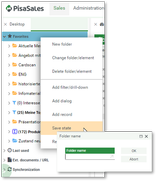
Context menu for saving a work status
Storing work statuses and restoring the session
In addition, you can store the work status on your CRM desktop in a folder with a name of your choice at any time. For this, the Save state function is available in the desktop context menu of the Favorites folder. By means of a hyperlink on the folder name, the client opens all objects contained in it. If such a folder is named "Autostart", it is automatically opened immediately after logging in and overrules a possibly existing temporary "Autostart" folder.
See also: The Chronos history