Searching for data means filtering out data records from a total quantity according to certain criteria. For this, the CRM offers the so called Quickfinder which lets you perform searches from within any list or form. The Quickfinder, which can be found in selection dialogs as well, helps you to search in the database quickly and easily. It is always active when you open a form.

Searching data using the Quickfinder
In addition, the CRM offers an advanced search with filters.
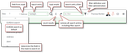
Quickfinder toolbar with filter selection
Usually, one always first opens a list or a form and formulates a query. You then execute the Load/Search function. It connects the search query with the database, compares the search result with the total data volume, and loads the result as records into the mask. A search query consists of search entries in one field or in several fields (combined search). Search entries in several fields are automatically linked with AND.
Note: If one opens forms for entering new data, they usually don’t contain any records. The records are loaded only according to the search entry after issuing the Load command (magnifying glass), i.e., with an empty search entry ALL records of the module are displayed. Avoid loading records without a search entry, because the search can take very long with large data inventories, and a limiting search is always necessary anyway. The Load command is a constantly recurring standard command which is also used regularly to update the display of all records.
You can see a field title in each case to the left of the input field in the Quickfinder as a pull down menu in which all fields are offered that you can use for searching, except locked fields. For searching locked fields, using the advanced search with filters is recommended.
Note: In empty forms, always use the Quickfinder or the various predefined filters for searching for specific records. Avoid first loading all records (because this can take very long, and usually shows only a limited number of results, up to 300), and then performing the actual search afterwards.
Proceed as follows:
- To execute a "clean" search, it is recommended that you always first delete existing search entries (rubber).
- In an empty form, enter the search item in the Quickfinder field (e.g. Save as ...).
- For a query in other fields, first click into the field that could contain the search item to activate it, or choose a field from the Quickfinder menu to the left of the search field. A checkmark in front of a field title indicates that a search entry may still be set for this field.
- Now enter your search criteria for this field in the Quickfinder, not in the form.
- Enter search criteria for other fields to perform a combined search.
- Start the search using the Load function (F5 or magnifier). JustRelate CRM automatically qualifies the search entry, and the result set is displayed in the mask.
Tip: There are fields that are not visible in the form, but can still be searched. Such fields can be found in the pull-down menu of the Quickfinder.
Example: At the company and at the person, the address fields "Zip code" and "City" with the addition "Main address" have been included in the master form. The columns are usually invisible but can be selected in the field menu of the Quickfinder ("City [Main address]", "Zip code [Main address]"). This makes it easier to select addresses from contact databases. This search is only executed on the main address of the contact! Alternatively, 1:n filters can be used for this purpose.
The Load command has two functions
What happens if one uses the "Load" Quickfinder function (F5)?
It either loads all records according to the entered search conditions again from the database in the current dialog, or it updates only the records currently displayed or marked in the list in the dialog, and does not use a more complex query, which saves resources.
This prevents the CRM server and the database from being unnecessarily overloaded from the second search onwards when the Load command is invoked in succession.
Note: The behavior of "Load" (i.e., searching) described here for a Quickfinder search is related to the setting of the PSC_FRM_REC_RFR variable. Regarding this variable, see Important client and server features.
The complex query is executed exactly if the variable PSC_FRM_REC_RFR is set to TOP:=n SUB:=n, or, independently of this, if
- the dialog has not been filled in yet,
- a filter is active,
- no loaded record is selected,
- one of the search conditions has been modified in the Quickfinder since the data was last loaded, or
- the last database access was a count call.
This means that the complex query is performed only if there is a reason for it. Otherwise, only the currently selected records are refreshed in the mask concerned, i.e. without taking the search entries into account.
Tip: If you want to ensure that a new and complete search is carried out in a form or in a list with selected data records when loading, please “Count” before loading so that a search is carried out.