Desktop integration

For Office and Groupware communication of the CRM Web Client, the CRM desktop integration software is the interface that brings along all necessary add-ins. Among other things, it allows editing documents directly from the CRM, checking documents in and out, and also checking in emails from the groupware.

  • File handling and editing (e.g. checking documents in and out, editing documents in the connected application, saving snapshots in the file system)
  • Live analysis whether there are any problems with installed or required Office add-ins, VSTO etc. (e.g. a 64-bit version of Office without VSTO).
  • MS Office coupling for handling office documents
  • Client-side synchronization of emails and contacts with MS Outlook
  • CTI integration

See also: There’s the option of MS365 integration, which makes it possible on operating systems without DIM (e.g. MacOS) to edit documents directly from the web client platform-independently in the browser-based MS 356 apps, and store them in OneDrive.

Installing JustRelate CRM desktop integration

The desktop integration software needed for connecting the CRM with office and groupware applications is installed largely automatically. No administrator privileges are required.

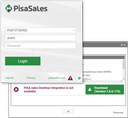
The CRM Web Client hints at deactivated or outdated desk­top integration, or its completed installation (colored warning triangle or "i" in the log-in dialog).

Installation requirements

To install and execute the desktop integration software, Net Framework 4.5 is required. For the Office addIns, the VSTO (Visual Studio Tools for Office) is required in at least version 4.0. The add-ins support Microsoft Office from version 2010.

Steps required after installation

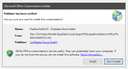
A typical consent prompt. Click "Install" to proceed.

After installing the desktop integration software for the very first time, or after the CRM has been upgraded, each Office application a CRM add-in was installed for (Word, Excel, Outlook, Powerpoint, MS Project) needs to be opened at least once.

This is necessary because the respective Office application requires your consent to load the CRM add-in. Without this consent, the add-in cannot be used, meaning that no integration functionality is available.

Info

Admin: If the desktop integration software is distributed centrally in your organization, please inform all users that it is required to give consent to load the add-ins.

Desktop Integration Manager not installed or not up to date

Desktop integration

When the client is started, desktop integration is activated automatically.

If the desktop integration manager hasn’t been installed yet or is not up to date anymore, then, after opening the web client URL in the web browser, a warning triangle appears at the bottom right in the CRM log-in dialog (desktop integration not active).

Problems with desktop integration

Note: You may have to confirm your web browser’s prompt for executing the external application or the external URL by clicking YES. It is best to set the corresponding setting to "always exe­cute this action" to avoid having to confirm each time.

If there are problems with the DIM, a colored warning triangle appears in the login dialog. If the problem persists, the DIM must be reinstalled.

  1. Click the warning triangle, click and execute "download" (store psadimxxxxx-LNG.msi anywhere locally).
  2. Terminate all Groupware and Office programs.
  3. Execute and install psadimxxxxx-LNG.msi.
  4. Open your web browser and log in to JustRelate CRM again (refresh).

After the desktop integration manager has been launched successfully, the warning triangle is replaced in the log-in dialog with a green "i", and the desktop integration can also to be seen as a process icon in the tray.

Further statuses represented by colored symbols must be checked and resolved outside the web client, i.e., within Office itself.

  • Problems with the Office version: orange triangle
  • At least one missing addin: green triangle

Use the information in the control window you can open by clicking on the corresponding icon.

Deactivate popup blockers!

To be able to use all features (e.g. personal calendar), the blocking of pop-ups in the browser used must be deactivated once for the web client. If pop-ups are blocked, you will be informed of this the first time you open the calendar. For details on how to deactivate pop-ups in the browser you are using, please refer to its documentation.

Google Chrome in particular only provides a brief notification of a blocked pop-up, after which no further information is provided. Pop-ups under Chrome can then only be unblocked via an icon in the URL bar.

Info

Admin: Information about using, installing and configuring the web client can be found in Pisa­Sales Web-Client Installation und Konfigura­tion (only available in German).