Using the View top menu and its submenus or the gears, you can personalize the forms, the top menu and the function bar.

How to personalize the user interface
Personalizing forms, top menus and the function bar
Personalizing a form
Similarly, you can personalize an open form by adapting the visibility and the position of subforms and tabs.
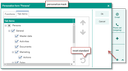
Personalizing the company form
For example, if you often work with sales cases, you could separate the Cases tab of the company form in General/Sales from the sales context and have it displayed a level above, e.g., in General next to the Master data tab. If you do not need any other sales data you can also hide the Sales tab completely.
From the function bar of each form, you can open the dialog to personalize the currently open form (gear icon). You can hide or show tabs and arrange them using drag and drop or step by step.
Rules and restrictions
There are tabs that cannot be moved or hidden. These are deactivated in the configuration.
If you move all tabs from a tab hierarchy, then the superordinate tab will be hidden.
Moving is not allowed if you leave the parent DTO. For example, the "Answers" subtab must not leave the "Questionnaire" tab.

Attention: Hiding or showing tabs corresponds to the known possibility to hide or insert tabs by right-clicking with the mouse. However, after having personalized the form using the dialog mentioned, you need to close and open the respective form again to refresh the result in the mask.
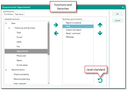
Personalizing the favorites in the function bar
Personalizing the function bar
In the same dialog as above, you can use the Functions tab to arrange frequently used functions as favorites in the function bar.