You can send an email directly via the CRM server, or compose it in the Groupware and send it afterwards.

Sending an email
Sending via the CRM server
- Open the email.
- Select Send directly in the function bar to send the e-mail via the CRM server. The settings for the POP3 and SMTP server must have been configured in My data, Configuration/Server Groupware function.
Note: The sent mail does not appear as a sent message in your email application, but it is given the Sent status in the CRM. The last line of an email sent from the CRM contains the identifier “GID” for the recipient. This is internal system information that is required to identify the email when it is checked in. The font color of the GID is adapted to the background of the email and can therefore not be seen on a white background. If you would like to change this, your administrator can adjust the value of the environment variable PSA_CPD_EMA_GID_CLR.
Sending via the Groupware
- Alternatively, click the Create in the email program function to open the e in your mail application (e.g., MS Outlook).
- Confirm the Microsoft security prompt for access to the e-mail program.
- Edit the mail in the Groupware as needed.
- Send the email from the Groupware.
- After you have sent the e-mail from the mail program, you should have it checked in so that you can assign and read it later in the CRM. The status of the mail is automatically set to Sent.
Note: There is a chance that the email has the status In progress, e.g. if it has been processed, and it was forgotten to reset the status, and further processing is therefore not possible. In this case, please click on the Extended and Status button and set the status to Not yet sent / Created. However, you must ensure that the correspondence is actually not currently being processed.
An email created in the CRM and processed further in the Groupware (MS Outlook) is always synchronized automatically to the CRM without any promp. Any attempt to change the status of an e-mail that has already been sent will be rejected accordingly.
List of attachments in the email header
After an e-mail is sent, a header with information on the sending time, sender, recipient, etc. is automatically inserted into the text of the email. This header also contains the names of the email attachments. This makes it clear on a printout of the sent email which attachments were sent with it.
Deleting sent emails

Attention: Emails that have been sent should not be deleted so that the activity history can be traced.
However, if it is necessary to delete an e-mail for urgent reasons, the owner of the email (creator) can always do so. Please check this option carefully, as the information sent may be with the recipient, but it will no longer be in your CRM system!
Only the administrator can delete the text of a sent e-mail (final status).
Determining the status of emails attachments
If documents are sent as attachments to correspondence that has the status in development at the time of sending, a decision must be made as to the status with which these attachments are sent. This is because if this document is subsequently processed further, the mail attachment may reference a different status of the document than the one received by the recipient.
When dispatching documents that are in a non-final status (e.g., in development) the following message appears:
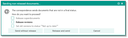
Warning when sending a non-final document
In this case, please decide whether the document should be released so that the final status can be tracked by the recipient. Otherwise, you will not be able to track the status of the document sent.