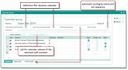
General usage

The Team calendar can be accessed from the Sales/Start/Team calendar menu or via the function bar in the Entry portal, or simply with the keyboard shortcut [Ctrl+K]. By default, the calendar is opened in a new browser tab.

  • Clear graphic calendar presentation of appointments and phone calls.
  • Display of the logged-in user, presence status (live) and presence selection.
  • Temporarily add people, teams and resources ad hoc to coordinate appointments faster.
  • Comfortable selection, creation and editing of calendar groups.
  • Convenient context menu for persons and resources.
  • Easy navigation on the timeline by date, time segment, forward and backward, today.
  • Meaningful and attractively formatted QuickViews for calendar entries.
  • The calendar can be printed.
  • Share calendars with other users via the "Share calendar" button.
  • Display of final appointments, phone calls on request.
  • Coloured display of activity types and categories.

Adding employees and resources ad hoc

  • Simply enter a name or description in the Add person/resource field, or use the selection dialog below the corresponding icon.
  • After Accept, the contact or resource is temporarily available in the calendar. You can remove them at any time by clicking on the locking cross. If you close the calendar, all ad hoc elements will be removed again.
  • However, you can easily save added ad hoc elements as a separate calendar group (save selection as).

Creating and managing several calendars and resources as groups

In the CRM Team calendar, you can group several calendars of your staff members and resources calendars on a per-user basis, allowing you to quickly and easily check the availability of your staff mem­bers as well as plan appointments graphically. Besides, information of any kind about cases can be obtained directlyfrom the appointment.

Thus, you have the possibility to quickly change between different groups of persons or resources, without having to use the selection dialog for individual staff members or resources.

  • "Collect" the corresponding staff members or resources as usual using the Show calendar menu.
  • Click on the small arrow next to the Calendar menu button, choose Save selection as, and assign a designation.
  • Open the calendar again later causes it to automatically load the most recently active group.

Creating and editing new activities in the calendar

The Team calendar is particularly useful for creating and coordinating appointments for other staff members. To create activities, the corresponding permissions from the calendar releases are required.

  • Use New from the Calendar toolbar menu, or use the context menu (right click), then New in the name area of the staff member or resource.

Note: The Responsible is automatically taken from the calendar, depending on whether you are using the toolbar (New) or the employee you are creating the activity for.

Various functions are available in the context menu of the activity (right mouse button). The correspond­ing permissions from the calendear release are also necessary here.

To edit an appointment, open it by double-clicking it or selecting Properties from the context menu. OK saves changes, Open displays the appointment from the calendar as a form.

Finding a common appointment date

  • Add the required participants and resources to the calendar. This function helps to find a shared free date for this calendar group.
  • The easiest way is to collect all members who are required for the appointment in the “Empty calendar group” to see whether they already have appointments. The advantage of the empty group is that the members are only entered here temporarily and no separate calendar group needs to be created.
  • Click the Find appointment button. The default start time and appointment duration will be set in the wizard. You can also set “all day” (flag) as the duration.
“All day appointment” flag 

If this flag is set, the duration entered is rounded to 24 hours or a multiple of this, non-working times are ignored, only appointment proposals with start time = 00:00 are offered and, after OK, an all-day or multi-day appointment is submitted (all-day flag = ON). You therefore have the choice of either creating appointments on a rolling basis according to the working time model or all-day appointments.

The scheduling also considers planned private appointments.

In addition to the activity status, the appointment finding function also evaluates the status of the appointment attendee ("Rejected", "Not participated") and the (missing) assignment in "Save as" as "Free". Thus, the appointment finding function works according to the same logic as the collision check.

  • If necessary, adjust the Start time and required duration.
  • Using the forward or back button, the wizard searches for the next or, respectively, previous common free date as a suggestion which is displayed in the calendar as a transparent bar. Already existing appoint­ments in the environment are considered and skipped in case of conflicts.
  • Decide on a free period in which all participants are available and press OK.
  • In the appointment form that follows, enter all the information about the appointment and set it right away.

Overbooking dates marked as free

Appointments can be directly marked as "Free" (checkbox next to the appointment type) so that they can be overbooked. Appointments indicated as “free” are not considered by the appointment finding func­tion and the collision check. Such appointments are displayed with an empty calendar icon in the QuickView, Calendar and Team Calendar.

In the context menu of the appointments in the personal and team calendars, the Show as function is available with the Free and Booked options. Selecting "Free" causes the appointment display to be dimmed.

Use case: With the free marking, an appointment can be created as a reminder, for example, which is not registered as a blocked appointment by the appointment check and can therefore be offered as a free appointment. If you use the subtypes (type), Homeoffice or Reminder and Milestone, for the appoint­ment, then an appointment is automatically labeled as "free".

Info

Admin: The default value of the mentioned appointment types is taken from the "Activity subtypes" administrator list when creating a new appointment and will be overwritten when changing to a different appointment type.

Tip: If you want to block time slots of other employees in the office, so that they are blocked as a resource in a certain period and are skipped during appointment finding, you can use an appointment series. Create an all-day appointment with the private flag (!) set, and save and delegate this appoint­ment to the employee you want to block. Then create a suitable appointment series from this delegated private appointment.

Handling of private activities

Private activities are characterized by the set private flag, displayed in the header of all activity forms (right next to the Prioritiy field). The flag can be set by the creator or by the responsible of the activity. If the creator sets the private flag, the Responsible automatically becomes the owner of the activity.

Private activities are fully visible for the responsible. For other users, only the beginning and end time are visible. All other information is blanked (****).

Presentation of activities with a final status

Completed activities are displayed dimmed. Activities with other final statuses are displayed in gray, dimmed and crossed out. These are:

  • Tasks (deferred, given up)
  • Appointments (canceled, rescheduled)
  • Phone calls (not taken place, rescheduled)

You can control via the menu options whether activities with a final status should be shown in the team calendar or not:

  • Display finished activities
  • Display canceled/rescheduled activities

Visibility of appointments subject to release (service actions)

In a team calendar, appointments are always visible, indepen­dently of whether they are subject to release or not. In the Entry portal, you will see these appointments only after they have been released (service resource planning).

Assigning resources in the team calendar

Resource planning for appointments is not only possible in the planning board (for appointment types requiring approval, in the standard system only appointments of the subtype "service call appointment"), but also in the team calendar.

All other appointment types that are not subject to release and are required for day-to-day business can be assigned resources.

Attributes of the current calendar group

The staff members and resources to be displayed in your calendar can be controlled via the Add/Edit calendar/Edit calendar group .... menu. The "Calendar group" dialog shows the selectable attributes of the cur­rent calendar group. The client remembers the selection on a per-user basis.  In this context, see also Releasing the calendar or resources for other users.

Calendar group attributes for the view in your own team calendar

Selection of attributes to be displayed

In addition to a standard calendar group, you can create any number of calendar groups, save them under a name and edit their attributes.

You can define which activity types are displayed in the team calendar in the Activity types tab when editing the calendar group, or in the Activity types calendar menu .

Note: In this context, please note the information on "Fixed type selection" below.

Info

Admin: The selectable types are defined in the server variable PSA_CLD_SEL_ACT (list of the activity names, separated by colons), e.g.: PSA_CLD_SEL_ACT = TASK:APPOINTMENT:CORRESPONDENCE:CALL.

Position and sorting in the Team calendar

The sorting can be specified individually in the Position field. Mixed sorting is possible and is saved in the client.

Dynamic calendar

If the Load persons dynamically or Load resources dynamically option is set, the system creates a calendar that is restricted to one or more activity types, e.g. vacation, training, .... At least one activity type must be selected. The system dynamically searches for all persons or resources who have vacation, training, ... in the selected period and displays the entries. If the system finds nothing, the logged-in user is always displayed without having any entries in the period in question. In the person and resource lists, you can restrict entries to teams or departments by adding the desired persons or resources to the lists. This allows you to define a vacation calendar for a team, for example. If the lists are empty, the system searches through the entire stock of persons or resources in your company.

Fixed type selection

The activity type selected in the group cannot be changed or extended interactively in the Team cal­endar.

Sort by name

Sorts automatically by name, and not by position number.

Standard

Identification of the implicitly created standard group. There can only be one standard group for each user.

Request calendar release

Calendars not approved by users are shown in italics in the list of persons. The Request release button function can be used to send a release request to a selected person by message. The message is only sent after the calendar group definition has been saved with OK.