Internal staff members can release their calendar for other users via the My data/Configuration/Calendar release function. In the list, you can be search for internal staff members with a login. The Name field will be searched. Here you can define which other users have access to your calendar, and with which permissions.

Releasing the calendar or resources for other users
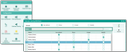
Releasing one's own calendar for internal staff members.
This is the same dialog as the one that can be opened directly at the calendars via the share icon in the title bar of the calendars.
Note: In the Team calendar, non-personal and technical resources are displayed if they have been released.
The release flags in the list have the following meaning:
Default release
The user receives standard access. This can be defined in the header of the release dialog. You can set different access permissions for individual users by setting the corresponding release flags in the list. These releases in the list have priority over the default.
Not defined
No release is defined. This means that the calendar is not visible for others.
Show
The user may view all my activities.
Create
The user may additionally create new activities for me (i.e., delegate them to me) and modify them later on.
Modify
The user can modify all my activities. They receive full access.
If the user opens the activity form via a hyperlink or a context menu from the Team calendar, further access to the activity is controlled by the calendar release.
Note: The calendar release does not replace normal access management, but complements it with additional restrictions. The access permissions are not extended, even if the release level is “modify” (i.e., full access). In this case, you can only make changes if you also have write permission for the data record. In the opposite case, however, this means that "Show" prevents any changes in the team calendar, even if the user is actually allowed to change the data record.
Important: This only applies in the context of the team calendar and does not affect the usual activity forms.

Admin: The administrator can specify user-specific default releases, e.g., after a new employee has been added to the system. The release list can be accessed via Administration/Contacts/Release calendar. A default release specified in this way can be changed by the user if the permissions to the default release record have not been restricted by the administrator.
Default for standard calendar sharing
The default for calendar sharing is always "change". The default can be controlled via the variable PSA_NEW_USR_DEF_CLD_SHR. The default share can be changed by contact administrators only when creating a new CRM user in the user management (Administration/Contacts/User management, New user button).
Using the SQL script "Set default calendar share", the default share can be changed for existing contacts.
Releasing resources for other users
Technical and non-personal resources can also be released for use by other employees directly in resource management using the Resources form in the Calendar release tab for the team calendar.
This makes it possible to use resources that have been created in resource management for appointments and assign them to these.
See also: For releasing resources for the Team calendar, see Team calendar.