Note: In activity sublists, a column indicates (spectacles symbol) whether there is a report for an activity (appointment, telephone call).

Reading and commenting a visit report
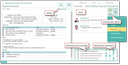
to comment a visit report
The visit report of an appointment can be found in its Visit report subform. There, you will also find
- the full visit report (BIRT HTML report),
- the questionnaires belonging to the appointment in their original layout, and
- the questionnaire responses as a list.
You can open a visit report or several ones as follows:
- For list editing or controlling several visit reports, using the Sales/Activities/Visit reports menu. All your unread visit reports are automatically loaded (corresponding to the quick filter settings in the sublist).
- Directly at the appointment (Read & comment function).
- You can mark several appointments opened from an activity overview in the form, and, using the multi-select Read and Comment function, open the associated reports in a list. This enables you to easily check several appointments from the appointment overview list.
- From a distributed message, you can open the visit report via a hyperlink.
Distributing, reading and commenting
When the visit report is distributed, all distribution persons of the appointment become followers by default.
When reading and commenting on a visit report, you can use the convenient pinboard technology which is also available when processing cases (see Project pinboard). The visit report is also offered directly in the appointment in the Visit report tab but cannot be commented there. Here, it can be updated, and the visit report responses can be deleted. Deletion access is regulated via access to the appointment and the responses. The visit report must then be created again.
Tips
- A visit report of an appointment can also be created via the Entry Portal (Edit activity/Create visit report from the context menu).
- In the reading view, you can also use the Quickfinder to search for the “Main participant” attribute. This will find the visit reports and those appointments in which the person you are looking for is the main participant. This addition to the search is also available in the appointment master form.