In addition to the search terms in fields of the mask or in system fields, you can have the filter dialog present the search results sorted by specific fields. You can, for example, search for all external companies that are your customer and have the search hits displayed in ascending order by the date on which the contacts were captured. For this, specify the Contact since field as a sort criterion in the the sort dialog.

Interactive sorting
Note: The field specified for sorting doesn’t need to be a field from the search list.
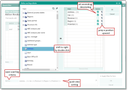
Determine the way to sort the search results.
The sorting can be opened directly from the editing area using the Sort to ... button. Any fields can be added to the sorting area by double-clicking. The ascending or descending sorting of individual fields can be set interactively with a mouse click, fields can be removed, the order of the fields can be changed or the entire sort entry can be deleted.
The sort mask allows you to search by fields (Quickfinder). Components are displayed as well and can be expanded.
The sorting can be visually checked in the Sort by... field, and the string can be directly adjusted there.
How to sort
- Click the Sort to ... button if you want the result of the query to be displayed sorted in the original mask.
- Look for and mark the fields by which you want to sort.
- Use the double arrow (or double click) to add the field to the list on the right side. You can sort in ascending or descending order (check mark) or change the order of the fields (click the arrow icon).
- Click OK.
- Click the Count or Query function. The search result is displayed immediately in the original form, the filter mask remains open. Using the navigation buttons of the filter mask, you can now browse the search result.
- For creating a new query, click the Delete button. This clears the list of search conditions.
- To save the filter and your work, enter a name under the title bar and click the Save button in the top right-hand corner (green check mark).
Note: If you want to display a larger number of results when using the filter, you can increase the mask capacity in the filter dialog to see more than the set number (e.g. 100 or 300) of hits at once. As this option has a negative impact on performance, it needs to be activated when required.

Admin: You can limit the maximum number of records in the filter using the PSC_FLT_MAX_REC environment variable.