In the filter form, you can set the level you need using a slider, which affects the presentation of the search area (attributes are hidden or made visible).

Functions and user levels
Note: The user level is controlled by settings (profiles) and can be set via the PSC_FLT_XPT_LEV environment variable.
Defining the default user setting
Using the variable mentioned, you can set the available levels in the filter form per user (1. Level = initial level), e.g. [POWERUSER, SIMPLE, STANDARD, ADMIN].
If you have the required permission, you can open the Configuration menu selection in the context menu of the filter bar to the right (button section). In this small window, you can specify the level to be always selected when the filter dialog is opened (set the slider to the level), or you can specify which levels should be offered (set the check mark).
Note: After configuration, you need to close and reopen the filter form.
If the string LOCK is used in the value of the variable, this configuration dialog is not available to the user.
- Simple
For users who do not require AND/OR searches or bracketing, but simply search for values or attributes (the default is AND). - Standard
The colored nodes (for system fields, components and relations) are offered in the field tree. However, unlike the power user, standard users do not see a WHERE condition, but can use brackets and links. Standard users and above can use the results list at the filter. - Power user
Power users work more at the definition level and can already see the DTO in the title bar, as well as the entire search entry, i.e. the filter definition, the sort entry and the entire WHERE condition in the database as a string. In addition to the results list, “Poweruser” also provides the List Fields function in the filter definition. It immediately shows whether a list is stored by displaying the familiar field selection list of the results list. - Administrator
In this expert mode, the user is provided with additional fields (shown in red) that cannot normally be searched (search mode X), e.g. GID fields. The level displays the search list in a complex view that allows you to check and edit the links as database descriptions yourself. The logical field names and the search condition of the individual field are displayed.
Selected functions in the filter form
Functions worth knowing
Filter visibility on the DTO
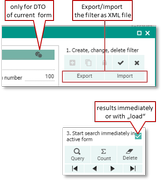
The default filter visibility is limited to the DTO level of the current mask (e.g. ..._XTD) (e.g. not to all marketing cases, but only to publications). The corresponding button in the title bar of the filter shifts the filter to the DTO if required. This allows power users to switch the filter visibility to the DTO of the current mask, and the filter is also visible, for example, for all other marketing processes.
Export / import
Starting at the “Power user” level, a stored filter definition can be “exported” or "imported" as an XML file (e.g., to send it to someone).
Withholding search results
When the filter is selected, all query conditions are usually provided in the mask, and the search results are displayed. As a power user, one can define (flag) whether a filter search is executed immediately when the filter is selected in the mask, or only after "load" (F5). This allows providing additional entries in the Quickfinder before loading the results into the mask.
Delete button for search entries
Next to the Search and Count buttons, there is a Delete button for completely emptying the search list including all conditions, the sorting etc. (not to be confused with the "delete filter" function).