With JustRelate CRM, marketing, sales, project and order processing as well as services are strictly combined under the roof of a project. A project keeps marketing, sales, and services data and actions together.

Project folders in sales and marketing
Campaigns in marketing
Campaigns are project folders of the Marketing campaign type. A campaign structure in the CRM standard is the basis for budget planning in marketing. In marketing, planned campaigns and their subordinate actions (telemarketing, event, etc.), including their costs and cost deviations, are assigned to the total budget for planning purposes.
See also: Budget planning in marketing
Projects link all CRM processes under one roof
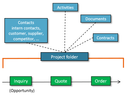
Project folder as central collection point for all project information
All the pieces of information accompanying an object or a project are organized in a central virtual project folder. The complex network of relations is clearly displayed for every object or project. All associated quotes or orders, including the commercial contacts and activities of projects or objects, e.g. tasks, appointments, correspondences, and documents, are automatically linked with everyone involved in the process. The information in the project folder can be centrally organized, yet traced and edited individually.
The project folders allow collecting all information the sales department and the marketing division have on a project, including the assigned cases (business opportunities, offers, orders and marketing actions). All information about contacts, activities, competitors, addresses, documents, etc., can be found here as well.
Attributes of the project folder
In the project folder, you can manually enter data for sales planning as well as for scheduling. As a general object, the project folder provides further fields and tabs.
Type
Project folders are distinguished by their type. The type supports categorization and overviews (sales cases, development projects, marketing actions etc.). Every subtype has its own project folder statuses.
Keyword
The keyword is part of the quote record and is used for creating quotes. In a quote, the project folder can be selected so that the quote can be used for several projects.
Status
Via the statuses, the progress and thus the turnover probability is indicated.
Contacts
Next to the customer, you can assign other contacts to a project and give them a role in it. The View dialog menu in the list lets you filter or extend the view on contacts: Without cases, With cases.
For the controlling of multi-stage marketing offensives or training projects (project folder with several marketing actions), the contact views in the contact tab of the project folder have been extended.
Additional viewing options: With sales cases, With marketing cases, With service cases.
In the "With marketing cases" view, the status column for participants is also shown. This allows the statuses of a person to be viewed in several, usually successive, marketing operations.
§ GDPR: The contact selection dialog lets you register new persons in the CRM. When registering persons, you must observe the GDPR and data protection! See GDPR-compliant registration of persons.
Activities
Create and log all general project activities. Activities created here using the function bar always refer to the current project folder. Activities related to the cases of a project are only created in the context of quotes etc. The View dialog menu in the list lets you filter or extend the view of activities: only project folder, only cases.
Documents
Assign all important documents to this project. The view of documents contained in associated sales cases can be selected. The View dialog menu in the list lets you filter or extend the view of documents: without projects, with projects.
Competitors
If you capture and assign competitors of the project, all external contacts are offered in the selection dialog of contacts. There is no separation between competitors. If contacts have been declared as competitors, the corresponding attributes are included here.
Addresses
The processes in a project require many addresses. Here, they can be entered by their various types (P.O. Box address, main address, delivery address etc.). These addresses do not need to correspond to the addresses of the customer, and can be created and maintained independently of them.
Trace back
On the Trace back tab, you can trace back every source and follow-up record. If you delete a source record later, only the assignment to its source and follow-up records is removed. In this case, direct follow-up records lose their superordinate levels, but not their own subordinate structures.
Using the button to select a source project or case, it is possible to directly select an original project by the creator of the transferred case, independently of the source.
A project folder can have further project folders as follow-up projects.
Dissolving the views, finding documents of a project
In the tabs and subforms of the project folder, the view of records can be dissolved for overview purposes (pull-down menus in the tabs). The view of the assignment of activities in the project folder can be dissolved according to the project folder or to its integrated activities of all cases or projects. Thus, for lists, the view of the assignments can be set individually in the tabs of the project folder.
The view, for example, in the document assignment can be changed and combined.
See also: Documents and Briefcases, Document view of contacts, cases and attachments
Assigning new objects
To the current project folder, new objects for sales, marketing etc. can be assigned using the respective subforms. Here, you can associate existing objects (… select) or create new records (New …).
The associated project folder is referenced in the referenced records (usually under Additional data). A sales case can be assigned to one project folder only.
Customers in the project folder
You can also see the assignment of customers to a project folder at the customer itself if you open the Sales tab of the customer and display the Project folder sublist here.
Form functions in the project folder
In the function bar, all important functions for the project folder are available.
Activities
The activities here always refer to the current project folder.
Snapshot
See Basics, Snapshot