Budget planning in marketing

For budget planning and cost control in marketing, there are budgets and campaigns in the marketing module. This makes it possible

  • to create a structured annual planning of marketing campaigns with subordinate actions based on a planning object,
  • to use the existing marketing budget (total budget per year) for planned campaigns and actions, or manually,
  • to perform cost planning on campaign- and action level,
  • to input actual costs for campaigns and actions and compare them at all levels with the planned costs and the budget.

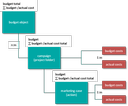
Budget planning scheme

Note: The term "campaign" is specifically used in this context for the project folder of the type "Marketing campaign" at the budget. The familiar term "campaign" as a synonym for telemarketing or similar offensives is not used with this meaning in the CRM.

The budget object can support you with comparing the budget against the planned and the actual costs.

Campaigns and marketing cases have their own budget and cost management, and can also be billed independently of a budget object. Only when they are assigned to a budget, their costs are calculated and compared with the costs of the budget.

Budget

The budget (total budget) is the top object to which planned campaigns with a budget, costs, and cost deviations, or (via the campaigns) cases and actions, are assigned.

Note: The available budget is not passed down. The planned or actual costs per year are cumulated from bottom to top.

A budget can be set to "active" as a leading budget (not to be confused with a status). When you cre­ate a new cost record, for example, the budget is automatically entered for the case or campaign. This ensures that not all the "old" budgets from previous years are listed.

Object-related activities let you manage the budget.

Campaigns as a planning instrument

Campaigns are not necessarily assigned to a budget object. A campaign is a higher-level planning ele­ment (project folder) with assigned marketing activities, and has its own budget and own planned and actual costs. Thus, regardless of marketing actions and cases, you can enter planned and real non-action-related cost types at the campaign.

  • The planned and actual costs of the assigned actions as well as the planned and actual costs of the cam­paign are summed up.
  • The deviation of planned costs and actual costs from the budget is calculated.

If the planned campaigns are assigned to a budget object (total budget), then budget, costs and cost deviations are reported at the assignments. The costs of the individual campaigns are summed up so that they can be compared with the available total budget. The "Budget" button in the campaign (General tab, right next to the campaign budget) lets you assign the budget to the campaign.

The field Budget in the campaign sublist of a budget object is writable. This supports allocating the budget to the campaigns without having to first open the latter.

For multi-year campaigns, The n:m-linking of budget object and campaign makes it possible to assign a campaign to sev­eral budget objects (e.g., to the planning for 2016 and 2017). The budget allocation can therefore also be done in the campaign (tab: Budget), and cost records can be assigned to another budget.

For cross-over budget campaigns, all values in the campaign are summed up if multiple budgets are assigned to a campaign. The marketing cases of a campaign have their own cost overview, which can be seen in the assignment list of the campaign as cost and cost variance per case. The assignment to a budget can be done via the cam­paign.

Planned and actual costs at campaign and marketing cases

All marketing processes (telemarketing, event and publication) manage their own budget as well as planned and actual costs at the action level.

The planned / actual cost lists at marketing cases and at campaigns have a Budget column so that it is possible to specify costs (related to a specific year) here for a superordinate budget.

When creating a cost record, the budget / year column is automatically pre-filled with the leading bud­get (flag Active of the budget), for example, for the current year.

On the actual cost lists of the campaign and the marketing activities, one document can be stored per data record, e.g. the invoice. The behavior is like with competitors. The documents are also automati­cally assigned to the project (campaign or marketing action).

Cost types

  • Cost types of the cost records in the case and the campaign are administratively maintained (Administration / Marketing / Project cost types).
  • Additionally, variable costs (quantity and unit price) can be maintained, e.g. for services, such as enveloping, postage, shipping.
  • Different levels of details of the planned and actual costs for the indirect comparison in the lists (real­istic, practice-related recording of actual costs including quantity and price).

Cost calculation

The totals and deviations at the nodes of the structure (budget object, campaign, marketing case) are cal­culated automatically at runtime after cost records have changed.

For multi-year campaigns, the costs of the action and the campaign are summed up and displayed independently of the budget and year. The partial values for a multi-year campaign with multiple budget allocations for the costs are totaled individually for the budgets involved.

Note: The respective budget of the campaigns and tasks assigned to a budget object is not taken into account from bottom to top. The calculation only refers to the costs.

Overview and budget check

You should always keep an eye on the total budget of the budget object when you manually allocate it to the individual campaigns or marketing cases.

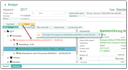
Overview tab of a budget

display and check budget

This displays the structure of the campaigns or marketing activities assigned to the budget, allowing you to control to some extent how much of the budget has already been allocated, and thus to avoid overdrawing the total budget. The planned and actual costs at the overview are recalculated at runtime for the current budget object when the data in the overview is loaded. They are not simply added up.

Select a branch of the structure tree to see the master data to the right.

Display values

The Budget, Plan costs, ..., Actual costs etc. buttons change the values displayed at the branches of the structure.

Check budget

The Check button helps to determine whether the total budget in the structure has been overdrawn in one place. In this case, the branch is highlighted in red, and a message is displayed.

Budget status

The statuses are primarily for information and are only linked to properties in one case:

Budget completed = The budget is closed and is no longer available in the selection dialog (campaign).

Cockpit elements

You can use the "Budget campaigns" or "Budget cases" elements for a marketing cockpit. The budget object can be hidden in both elements (when configuring the element). The budget value is not dis­played in the "Budget cases" element (Y axis), as this value is not related to the budget object but to the campaign.