Admin: The JustRelate CRM quoting license does not block any products. For licensing reasons (named licenses only), the product tabs (Configuration) are generally visible. For users of the current CRM version who do not manage any products, these tabs can and should be hidden via profiles.

What does editing the scope of supply mean?

The sales department usually has access to a neutral product structure with preconfigured variants. A structured neutral product database is provided for this purpose by the construction department. The sales department pools top products in product lines according to commercial aspects, groups of products with the same attributes in product and service classes. Already preconfigured variants are provided, and prices are specified.
Product and service classes form a so-called placeholder for a specific item in the product structure. According to the customer request or the current production, this placeholder is replaced with a specific item.
When creating or editing a process, the sales department in most cases chooses a product or a service with a neutral (product) structure from the company's product line. As a result, the neutral product structure is added to the case (required items are already preselected, variants are selectable). Customer requests can be directly taken into account by configuring products, services and items. Options and alternatives can be configured down to the lowest structure level.
Limited to active products
Only active and valid products are offered for selection. If required, this restriction can be removed using the Active button. Then, inactive and invalid products are displayed in color.
When selecting products via product lines or sectors, inactive products are hidden.
On product Replacement (function in the scope of supply), the system issues a message if an inactive or invalid part is selected as a replacement.
Product selection by sectors
In Product choice with productlines, the first level is the product sector. In the second level below, the neutral article follows, and every other level is the article structure (recursive). Sectors as a whole cannot be transferred.
If special requests of a customer that cannot be served by the production must be met, new case-specific Commodities or Services including their prices need to be specified. Typically, these are subcontracted supplies.
Editing the scope of supply in the configuration list at cases
A quote can be fully configured in the Configuration / Scope of delivery subform. Here, you can assign case-specific items from the neutral product catalog. Newly created case-specific items (not from the neutral product catalog) are commodities that will accordingly also be listed in the commodity list.
All items can be repositioned and structured using drag and drop.
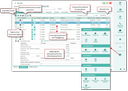
Configuration of the scope of delivery
Initially, you will see the overview level of all products in Configuration. After a click on the structure characters (+), a tree view of all positions is displayed.
In the configuration list, all positions with general data, costs, prices and text modules for technical specifications can be edited without having to open the single product in an individual form. In the scope of supply, the object view can be adapted to the particular tasks.
- Shortcuts for inserting positions
- Shortcuts for inserting text lines and subtotals easily
- Easy repositioning of units via drag and drop
- When repositioning a subtotal, these entries are calculated again automatically considering the new position (no recalculation necessary).
- Viewing and editing the calculation data of each product directly in the scope of delivery
- Recalculation is optional after modification of products or after saving the total scope of delivery
- Function for quantity explosion (accumulated branch quantities, quantities per branch)
- Viewing or editing the calculation data of each product, including comfortable navigation through the scope of delivery.
Alternative items
Alternative items can be created using a specific function or by drag and drop. They are then given identical item numbers, and only one item is selected.
Defined view on product data
The product database can be accessed through predefined profiles (product management, sales, administration...). The view on product data and its usage is hence defined differently for the various user groups. A user might sometimes be able to view all delivery items within a quote, however, she or he cannot access the product data. The view on the product’s usage in other cases and projects as well as on the case-specific usage is therefore also denied.
The products or service view in the sales tab of the company includes the Sales status column if, e.g., an ERP interface is used. Here, sales staff members - provided that a corresponding order status (e.g., from ERP) is set - can get an overview of open or already delivered products.
Data adjustment between sales and neutral product catalog
If neutral items are integrated case-specifically at sales quotes or orders, the product data and costs, prices etc. are always first added from the neutral product database. These can be adapted case-specifically. If the product data changes in the product catalog, the quote-specific product data can be compared with those of the neutral product and updated if necessary at the delivery position (Product).
Access a case-specific product from the scope of delivery (Configuration) and click on the Compare data or Restore data function.

Attention: If you have already aligned the article data with the quote, the former is reset by updating it, meaning that it is overwritten with the data from the neutral product database!
The output for data adjustment between sales and neutral product catalog takes place in a comparison or, respectively, an update dialog.
Comparing data
You only see what has changed. The changed fields are displayed in a generic comparison dialog.
Restoring data
Here you can decide what you want to take over and can adapt the data beforehand if necessary.
Hyperlink from case-specific product form to the sales case
If you open a case-specific product from the scope of supply (Products/Services) in the customer file, you will find the case number and the title of the sales case in the title of the product form (title row of the form). This entry is available as a hyperlink, enabling you to instantly switch to the corresponding sales record.