The Import function of the Contact import form distributes the data to the CRM tables and carries out the assignments of the selected key fields accordingly.

Import data
§ GDPR: When registering persons, you must observe the GDPR and data protection! See GDPR-compliant registration of persons.
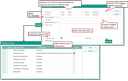
Attributes for contact import and data protection

Admin: Updating the status symbols may reduce the import speed. The PSA_IMP_DAT_PRC_CLC_CCP_HEA environment variable can be used to suppress this calculation, which may improve the performance of the import.
- The imported contact statuses are available for all companies and person groups next to the other statuses. Therefore, you can import, for example, also a list of competitors or suppliers and assign corresponding standard activities to the post-processing via this process.
- If the Acc.manager field remains empty, the logged-in user is registered as an account manager. If you operate with the automatic sales region distribution, then the account manager entry is preset depending on the region or industry.
- There are three duplicate check options:
- No duplicate check: The contacts are created in the system without checking. With this option, a new ad-hoc list should be used for importing.
- In the background: Duplicates are marked for later processing.
- In the foreground: Sequential duplicate check, including the possibility to merge the data in a controlled way. In contrast to the other contexts, data can merely be selected in the dialog for merging it (old, new), not edited.
- See also Contact data resolving.
- Ad-hoc lists
- In the selected or created Ad hoc-list, all imported companies and contacts are recorded. The ad hoc-list can help to check the import (find the imported contacts as well as further segmentation and compaction). When creating an ad hoc-list, the Occasion is automatically used as a name component, and a time stamp is added.
After the import
Every record successfully imported into the system is marked in the import table with the flag Imported.
After the import, you are asked if you would like to open the imported records. OK either opens the accompanying ad-hoc list, or the the imported data is opened in the company or person management. The ad hoc-list is automatically registered in the import history.