The desktop offers several areas designed for functions, commands and data.

The desktop
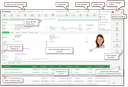
Desktop with person form
How to dimension mask areas dynamically
In a mask or a form, you can dimension the layout dynamically using anchors for the mouse pointer. This is possible in master detail dialogs between the main form above and the overview list below it, as well as in many subdialogs, e.g., a tree view to the left and the details form to the right. The dynamic handle lines can be recognized by the fact that they are activated by the mouse pointer or marked by three small (horizontal or vertical) dots.
Using the short key [Ctrl+Alt+R], the default layout of a mask can be reset.
Note: It may not be possible to dimension form areas in every case, even if the form implies it.
Automatic scrollbars for devices with a small display
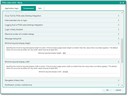
Minimum required display size for laptops
There are environment settings for fixing the size of the masks (adjustment for scrolling the desktop in the Web Client). To do this, you require administrator access to the client setup console of the Web Client.
QuickView
With hyperlink fields in forms and lists and also in the tree view of records, the so called QuickView dialogs appear when the mouse pointer hovers over them. They show basic information of the linked object, e.g., contact information or document information, without having to open the object via the hyperlink.
In the tree view of lists, for example, you receive information about follow-up activities or processes (who is on it, what is being done?) in the Lead Management Portal without leaving it. The same applies to favorites on the desktop.
Next to the possibility to disable QuickViews completely (see How to personalize the user interface), the delay time until QuickViews appear can be set. The default delay is 1250 ms. This way, QuickViews do not interfere when you just want to click a hyperlink.
Note: The delay time affects both regular tooltips and QuickViews because they both have the same trigger.

Admin: The settings can be changed in the web client admin console.
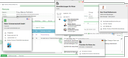
Examples of QuickViews in a company form
The modernized display of QuickViews is only supported by the web client.
QuickViews are active by default. However, in the "Personalize view" dialog (gear on the top menu bar) you can, among other things, enable or disable QuickViews. Independently of this, it is possible to enable or disable QuickViews in external views such as the Team Calendar, etc. This means that no QuickView will pop up in the forms or in the favorites tree, but it will pop up in the Team Calendar or in the Entry Portal, for example.
Note: QuickViews are displayed as a mouseover effect. A prerequisite for QuickViews to be shown is that the mouseover effect is enabled by setting the user-specific variable PSC_CFR_FLD_HVR to y.
Admin: As a tool for customizing QuickViews and creating new ones for your own objects, the list Development/Other/QuickViews is available. It lets you locate existing and new QuickView dialogs (filter: Old, New, All), check their presentation (hyperlink to name), and create new ones using a wizard (QSF generator, TSF generator).