Depending on the task or authorization profile, the corresponding menus are available in the menu bar. The availability of submenus always also depends on the user and their permissions. The modernized display is only supported by the Web client. In the Windows client, the familiar QuickView forms are displayed.

Menu bars and commands for editing data records
As a user, you can find help in the Sales, Edit, Extras, View and ? menu bars.
The submenus can be restricted based on the profile.
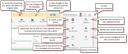
Standard commands and Cancel & Save
Users with an administrator profile have the Administration menu, however, its submenus may be restricted as well.
From the CRM logo, you can immediately see how many messages you have. Clicking the logo opens the My messages list with the current entries.
You can specify whether the menu bar is permanently visible or disappears as soon as you have invoked a command. This can be done using the small pin on the far right of each menu bar.
Functions like Save and Cancel are only visible if you are editing a record. At the same time, you can display the standard commands for editing or modifying a data record using the function menu at the top right of the menu bar.