Object link to CRM records

With JustRelate CRM, any CRM objects (document records, contacts, activities, tasks, etc.) can be linked in texts as desired. This makes it possible to navigate from the text directly to this object, just like using a hyperlink.

For cross-platform work in the web client (e.g. on a Mac), in addition to the familiar Extras/Tools/Show object link function, there is also the option of conveniently copying an object link to a CRM object directly to the clipboard.
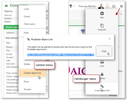
The "Create object link" command is located in the general command menu (hamburger menu) as well as in the context menu of forms. It creates the link and presents it in a small dialog, from which the user can copy it to the clipboard, just as with many other cloud services. This way, the object link can be used in the CRM as well as externally, e.g. in chats or in documents as a link that opens objects in a JustRelate CRM installation.

Note: The mouse cursor must not be in a CLOB field when copying, otherwise the DTO will not be recog­nized.

Creating an object link

Using the hotkey [Ctrl+Shift+L] or [<Shift><Ctrl><L>] on a Mac, or the Sales/Extras/Tools/Show object link function in the menu, the link to a DTO can be copied to the clipboard. If the hotkey does not work because, for example, a browser add-on blocks it, you will also find the Show object link function in the function bar of the form concerned.

The hyperlinks to CRM objects only work if you are also using a JustRelate CRM installation. Clicking on the link in the external application opens the standard browser instance for the web client, where it may be necessary to log in.

Attention

Do not simply paste the link from the clipboard to an external office document, etc., but use it as a link target for a selected piece of text.

In the HTML editor and in the task pinboard, editing functions for inserting object links are available.