The filter dialog offers easy-to-use advanced functions.

The filter form
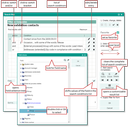
The filter form for special search conditions, and for defining your own filters
- You can set frequently used filters as favorites. Only the favorites then appear in the filter selection list.
- Define a special dynamic result list at the filter to display search results without loading them into the mask.
- Search for date, time and periods of time (time frames).
- Combine several 1:n queries (e.g., to easily find contacts with specific properties, or questionnaire answers).
- The complete field tree is available for creating the query condition.
- You can collect and display the complete condition in the form of rows/search list.
- Filter usage by different views (level: Simple, Standard, Power user, Admin). The mask updates itself dynamically using a slider.
- Conveniently create search groups with brackets and OR-linked conditions.
- The filter form always applies the most recent query condition from the mask, i.e., from the Quickfinder (helpfully if one needs to increase the max. number of results).
- In addition to the title, filters also can be described in more detail (Find results with ...).
- Manage filters conveniently using a list.
A filter is always stored at the active mask (data object in the repository) in which it was defined, and cannot be used in other forms that don’t not use this data object. Every user can create a filter and also specify the user group to which it is made available.
Note: The owner of a filter (the user who created it) can define its use (group) and the access permissions (modify filter). If this is not done, anyone who sees the filter can also change it.
The filter dialog offers convenient categories for entering search terms, such as “with all words” or “without the words ...”, as well as further type-specific entries and operators for dates, numerical comparisons or the comparison of fields. JustRelate CRM automatically creates the search string based on your entries and displays it in the filter dialog.
Note: The comfort query via filters includes all fields of the form and the relations. If you have activated a tab in a form, the filter search refers to the fields in this tab. It is best not to create a filter until you have become familiar with the possibilities and options in the filter dialog. See Collecting query conditions.
See also: Creating and using a filter