After opening a form, you have various areas and tools at your disposal to enter and edit data records interactively.

Mask tools
Form area
All open forms and overview lists appear in the forms area. You can etit all data records in this central area. The forms are located on tabs, each of which can be brought to the foreground and also closed.
Status bar
There is a status bar in the CRM. This is an area in which statuses for the loaded data record can be displayed using icons in the top right-hand corner of master forms, e.g. for a company or a sales case.
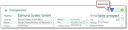
Status monitoring for a company
See also: Status monitoring in forms
Function bar
All forms have context-specific functions you can find on the function bar on the right. These functions are only available for the active form and can change when other areas within the form are activated.
See also: The function bar
Context menu
You will find a context menu (right mouse button) with object-related commands and functions for almost all objects in the user interface. Menu commands are available in the context menu depending on the status of the active mask. The context menu changes depending on which area of the mask is activated. You can select commands from the context menu with the left mouse button.
Tooltips
Various objects such as buttons in the toolbar and in the forms, on tabs and on individual field titles display a tooltip (speech bubble) if you leave the mouse pointer on them for a second.
Displaying, changing or scrolling records
A module form always contains an overview list in which the loaded data records are listed. The first record is automatically displayed as soon as the Load function (magnifying glass) is executed. The record to be displayed can be selected or highlighted in the list. Alternatively, you can scroll through the list.
Editing records
With JustRelate CRM, you do not need to switch to an editing mode. Usually, a single click in any data field in the form or in the list is enough for you to start writing. Only if you want to create, duplicate or delete a record do you need the editing commands under Edit.
Color representation of data
The data of the data records in the CRM forms and lists are displayed in color. In particular, this allows you to determine which fields are writable, which data records are closed (not up to date) or whether activities are overdue (escalated).
Colors | Context | Meaning |
|---|---|---|
Form text: green, | read only | The fields of a form in which the entries cannot be edited. |
List text: green, | read only | Master data records (fields) cannot be changed at this place. |
Form text: black, | active records |
|
Form text: red, | not up-to-date records | Retired contact, out-of-date document, expired warranty of a service object, overdue service call, escalated activity |
Field title: red | Mandatory fields | Mandatory fields of a form or a list during INSERT, UPDATE (create, editing) |
Activity record: red | escalate | The activity is not closed and overdue. |
Contact record: red, crossed out | duplicate | Contact record marked as a duplicate |
Record: grass green | final state for cases | Finalized, canceled and closed cases |
Record: grey | no longer active | Inactive record |
This color representation can also be found in the selection dialogs and in the properties dialogs.
Focusing form fields
If you move the mouse pointer over the fields of a form, they are highlighted in color. This helps to better locate the fields on the interface or to quickly recognize their dimension.
Checkboxes for flags and options
A checkbox can be activated (ticked) and deactivated with a click. A flag can also be set and reset via a checkbox, for example, the postal flag for the correspondence address in the contact management.
Options are small buttons in the form of radio buttons which appear in some masks. Only one option can be selected.
Adjusting tab systems, hiding and showing tabs
The tabs of the subdialogs of a form have a context menu for hiding and showing the list. This allows you to organize your forms more clearly. When you right-click on a tab, the context menu displays all tabs in the area.
Shown and hidden tabs are saved per user. This doesn’t apply to top tabs (such as General), but does apply to the corresponding subforms. This corresponds to the personalization of forms.
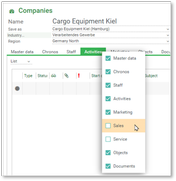
Fading out tabs by deactivating the tab.
Editing mode indicator on the tab
You can tell whether a form is currently being edited by looking at the tabs of the forms and subdialogs. A red dot automatically appears next to the tab text if the associated dialog or subdialog is in the editing state. If there are several subdialogs, all tabs that lead to the dialog in the editing state are marked. This allows you to locate a subdialog that is being edited more quickly.
Displaying, activating, changing, closing several masks
Every time you open another form, the previously used mask remains in the background. Each form has a tab that can be used to activate the mask. The tab can also be used to close a form individually. In addition, you can use the View/Window list menu or the context menu on the tab of an open form if you have many open forms.
Expanding tabs
Most lists on a module form can be expanded to the full mask size (horizontally and vertically) by double-clicking on the tab (title). Double-click again to reduce the tab again. This gives you a better overview of the expanded relations list if required.
Tab concept and history
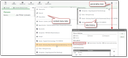
Concept of hidden tabs
If the available space for visible tabs is exceeded, other tabs are hidden, which helps to control the number of visible dialogs. The tabs used least during the session are always stored in the history. The history can be recognized to the right of the last tab in the history menu in the form of three horizontal dots.
All tabs with a currently loaded data record are listed in the context menu of the visible tabs. The tabs in the history are listed separately in the context menu.
The tooltip on the tab shows the complete string and contains the object name.
Via "Personalize views", you can specify that hidden main tabs are closed immediately and not stored in the history.

Admin: The dialogs can be identified by the EAL, ESL, CCP, … suffixes, stored in a variable. The maximum number of tabs in the history can be set in the "Setup" dialog in the administrator view of the Web client.
Tips
When you open the mailbox, the Entry Portal or the calendars (Sales/Start/ ... menu) are displayed in a separate browser tab by default.
The "Open external views in tabs" option in the "Personalize views" dialog (gearwheel) the view of the mailbox, Entry Portal and the calendars in a tab of the current browser instance can be spectified.
Window list
In the View menu, the window list (list of all visible and hidden tabs) and also the functions for closing forms (close active, all, other) can be used.