For searching globally, a dedicated mask is provided. The search result is a list containing the hits that are sorted by relevance (ranking) in descending order, and you can open an information object by clicking the corresponding hyperlink. In a preview, the header information of the records and the first 1,000 characters of their content are displayed for marked objects.

Global full text search
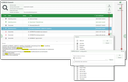
Full-text search can refer to selected objects
Note: In the full-text search for documents, the Last modification column uses the timestamp from the Checked in on document field as the source. This is the time when the document file was last edited, or a version of it was last checked in. This makes it easier for you to find recent and current document versions.
Admin: This change to the timestamp only works if the index is rebuilt.

Attention: For documents, the index is usually created as you are working with it. Creating the entire index again can take a very long time.
Operation
- Open the CRM EUREKA Search from the Back office Sales top menu.
- Enter your search strings or query conditions in the corresponding fields. A word can consist of letters, digits and underscores. All other characters are separators and may lead to empty results.
- Click the button Objects to select the objects to be searched, thus limiting the search to these objects. Click OK.
- Click the Search button to load the search results.
- Click the hyperlink in the Title field to open the form for the corresponding record.
- For documents, you can immediately open the corresponding file with the application linked on your system by clicking the icon in the Icon field.
Note: The search text you entered is reformatted by the search engine and displayed in the search mask. For example, punctuation marks are removed and umlauts are replaced or removed. This modified search text thus corresponds exactly to the text that the search engine effectively uses internally. In this way, you receive feedback as to why the search text may not deliver the expected result.
User-specific configuration
The Configuration function lets you define restrictions for specific objects and store them on a per-user basis. This supports users who often search only specific objects such as documents, etc.
The restrictions are stored in a user-specific variable after confirming the dialog (OK).

Admin: an administrator can index fields that were added through customizing. See also Searching and finding. A tool for EUREKA index maintenance is available, in particular for administration in cluster mode.