The standard functions in the CRM are for creating, searching for, and working with records. You can find all standard functions for this in the toolbar as well as in the context menu you can open by clicking the right mouse button.

Standard functions for research and data editing
Note: The standard functions are accessible via the “Hamburger” menu, as well as the context menu, and directly via the search field (Quickfinder). See also: The user interface and its related topics
Menu | Key | Operation |
|---|---|---|
Load, Query, Update with History selection | [F5] | Fills a mask with all records from the database according to the search entry. If the search entry is empty, all records are found, but only a limited number may be loaded. |
Clear | [Ctrl+U] | Deletes all search entries, afterwards a new query is possible. |
Count | - | Shows the number of records found that match the search entry, but without loading them. |
Filter form | [Ctrl+T] | Opens the filter form for finding database records by certain criteria. |
New | [Ctrl+I] | Creates a record in the master data. |
Duplicate | [Ctrl+J] | Duplicates the currently marked record within the mask without structures. |
Copy structure | [Ctrl+ Shift+J] | Duplicates the current record with all structures within the mask. |
Delete | [Ctrl+D] | Irrevocably deletes the selected records. |
Save | [Ctrl+S] | Saves the changes to the database. This function is only visible in the function bar of the form while editing. |
Cancel | [Ctrl+Q] | Resets the record to its original state. This function is only visible in the function bar of the form while editing. |
New
The New command creates a new master record in the mask. Afterwards, you can edit and Save the record. Fields highlighted in color are mandatory and must not be empty in order to be able to save the data record.
In relationship lists, data records can usually only be created via a selection dialog and not via New.
See also: Selection dialogs for relations
Duplicate
Duplicate lets you create a copy of the selected record (or several selected records). The new record is then automatically in editing mode, and needs to be modified. Any existing relationships to other objects, such as the relationship of the original contact to several documents, are not copied when simply duplicating without the structure.
Duplicate with structure
Duplicate with structure lets you create a copy of the selected record (or several selected records), including its structure. Afterwards, the new records need to be modified. Pay particular attention to reassigning or changing important attributes such as Name or Subject before saving.
All data displayed in the sublists, i.e. all relationships to other objects such as the relationships of the original contact to several documents (and also their relationships to other subdocuments), are also copied when duplicating with structure. They can then be used in the copy in the same way as in the original data record.
For some sublists, duplicating assignments (relations) is restricted for performance reasons.

Attention: If the display of data records was restricted by a search in the tabs before duplication, only this visible structure is transferred to the data record of the copy.
Duplicating documents
When copying documents, the system initially assumes that a new version of the source document should be created, and therefore asks "Create new version?". Yes causes a new version to be provided. The Number of the new document stays the same, and its Version increases by 1. If you respond No, then a new document with a new document number is created, and both the version number and the revision number are set to 0.
See also: Document version
Edit
JustRelate CRM has no special editing function. You can enter a field with a mouse click and edit its contents immediately after the text cursor appears. Click Save after your edits are complete if you want to apply the changes to the database.
Attention: In master forms with overview lists, you can edit several records at the same time. All records remain “open” until they are saved, even if they are not currently displayed in the form. Please note that if you cancel editing, the changes to all edited records will be lost. It is therefore advisable to save the changes to a record before you edit another one. Always keep an eye on the overview list if you are editing the field entries of several records in the form. Data records that are being edited can be recognized by the pen icon in the first field of the row.
The following features facilitate field editing:
- Field selection menu: Selection tools in many fields (arrow in the right field margin). If only entries that are offered in the field selection menu are allowed, JustRelate CRM will issue a corresponding message when attempting to save the record.
- Autocomplete date: In date fields, it is sufficient to enter a character string from which the system then automatically suggests a date. “0204” becomes “4/2” of the current year after pressing the tab key, “020425“ is automatically transformed to “Fr, 4/2/2025”. If you do not enter an explicit time value in the date field, the time is automatically set to the current time (time is not available in all date fields).
- Autocomplete contact: In fields that let you select a contact (the recipient of letters, to in emails, etc.), it is sufficient to enter a character string, based on which the system then searches the database for suitable contacts, suggests the ones it finds, and automatically enters them in the field by pressing the tab key.
- Calendar control: In date or time fields, you can always select field entries using the calendar control (selection menu at the right-hand field border). Months and years can be adjusted with a mouse click on the corresponding entry in the header. The control closes automatically after selecting the day with a double-click (or highlighting the day and pressing ENTER).
- Expand field: If a field is active (the cursor is in the field) a double-click is sufficient to expand the field. You can see the number of available and already used characters in the bottom right-hand corner of the field.
Note: The number of remaining characters is only visible if the field is expanded.
- In fields with a list of entries like To, CC, BCC for emails, or the list of attachments in the Attachment field at a correspondence, you can find a small arrow. Click it to open the listed entries in a modal window.
- To the neighbouring field: If a field is active, you can easily change to the neighbouring field using the tab key, and start editing.
Marking of writeable fields in lists
In lists where it is not permitted to create data records, a pencil icon is displayed in the column header for fields in which entries are permitted, regardless of how you can fill in the field (edit, via selection menu, etc.).
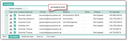
Pen icon at writeable fields of a sublist
Note: The pen icon is only displayed in lists in which records may not be created directly, but in which existing entries can be edited. These are all overview lists and all sublists in which a relation with other objects can be established via selection dialogs.
Column titles of BLOB fields (e.g. status symbol or document format) generally do not have a pen.
Example: In the attendee list of an appointment, you can see that you can set a flag, edit the e-mail address or the role of a participant.

Admin: To activate, customize, or upgrade to this feature, please refer to your JustRelate project representative.
Delete
The Delete function removes one or several selected records after confirming the prompt.
If the record to be deleted is directly connected with other records in a structure, it can only be deleted after the relations have been resolved.
Attention: This command removes the record from the mask and deletes the record irreversibly from the database after confirmation. There is no recovery function for deleted records.
The Print function generates a standard report for the active mask via the report manager or in MS Excel. Before printing, you can configure the report or, respectively, the data sheet.
See also: Printing reports and data sheets
Access
Opens the access form for the selected record. The form provides information about the record owner, the creation and modification date and the access permissions of user groups. In this form, access to the record can be changed by its owner.
See also: Protection of records
Multi-language fields
The system’s multi-language concept supports multi-language interface objects and user data entries. User data can be maintained in multiple languages for selected fields in masks and lists (e.g. all filter titles and the Subject of activities). All fields where the country icon is visible (inverted by default) can contain multi-language entries. In lists, the translated column always appears or disappears directly behind the standard column when you click on the country symbol.
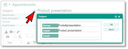
Multi-language flag at selected fields
Attention: If the CRM is used in multiple languages in a company, the relevant user data must always be entered in multiple languages. Otherwise the data will not be displayed when switching to the secondary language, or will default to the prefix (### ...). The prefix used may have been changed via the environment variable PSA_LNG_DAT_PRE.
Tip: If the “multilingual” button has already been pressed in insert mode (the record has not yet been saved), all language fields need to be filled in manually (including the prefix, if needed). Otherwise, you cannot save the record, you can only cancel the insert mode.