Maintaining internal users

User administration

The traditional administration functions for managing internal users are easily available also for end-user administrators (for example, heads of department).

The "User administration" can be opened via the administrator menu (Administration / Contacts / User administration) and from the toolbar at the internal employee (not "My Data").

  • An administrator has access to all users.
  • At the internal employee, only the own user administration is possible.

On the one hand, this makes it relatively easy to create new users (including roles, etc.), edit (change password, etc.) or delete users. And on the other hand, web users can be created just as easily for partners.

For internal users, the management functions can be found via the User management function.

With JustRelate CRM, you have convenient user administration available.

  • Import of many contacts as users (CSV, ActiveDirectory etc.).
  • Parameterizable templates for automatic configuration of user settings when creating users. Configuration of existing users.
  • Batch processing of the tasks and functions of many users in one go from one template.
  • Control and feedback via a traffic light symbol concerning the progress of the user configuration.
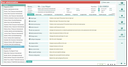
The User administration form for end user administrators has a user list to the left (double click the General tab), and several tabs to the right. A new user can be created using the New user main command to the right of the title bar. In the Functions tab, the functions for managing the users are ordered by their topic.

Note: To be able to create or manage internal staff members, the access group required for managing internal contacts must be set in the PSA_CON_INT_ADM_GIC variable (the default is group 45). Using this environment variable, you can also set a different group for this purpose. The logged-in user can then man­age internal employees if she or he is a member of this group, and thus can open forms for managing internal contacts.

Scenarios in the user administration

  • When creating many or individual users, the administrator uses the CSV import at the internal depart­ment, and the batch procedure with templates.
  • To create individual users, the administrator uses Staff New at the department with a template.
  • Administrators who need more control can use the previous New User function in the user administra­tion with the familiar wizard.

New action concept

A revised action concept makes it possible to centralize and automate the management of users better.

All known functions (function buttons) are still available in the user administration, but are managed and mapped via a new action concept. In the Functions tab of the user administration, function groups and func­tions defined by the administrator are used with their own select dialogs. This means that the master forms do not always need to be opened separately.

Groups and functions can be managed in the corresponding management list via the Admini­stration/Contacts/Internal staff: Functions menu.

This management list shows the functions as the smallest unit that can be grouped together (create group and assign to function). Functions can be marked as "Necessary functions" (when creating a new user, at least, e.g., a login, an access group, creating a resource and assigning profiles and licenses are necessary).

The function name and description text are displayed in the User Administration form as a header in the select form of the function when selected.

Dynamic select forms in the user administration

In the Functions tab of the user administration, the groups and assigned functions are then dynamically dis­played in the user form. Reopen the user form to have the changes displayed that were made in the function list (.../Internal staff: functions).

Functions that are "necessary" are highlighted in bold in the user administration. Via a checkbox entry in the administration list, the function is marked in the user forms of the user administration with a checkbox.  This checkbox indicates whether the function has been executed/processed (then a green checkmark appears).

Provide integrated function dialogs

Functions that perform a configuration in the user administration require a dialog to be able to execute the function in the user form interactively. You can create the dialog via the PiSA cubes dialog definition and enter it in the administration list at the respective function.

The functionality is provided by implementing a class (from the static *. jar or via dynamic Java). Customizers can add their own implementations and provide them as functions.

Functions without dialog (PSA_NUL) do not even appear in the user administration. According to their implementation, however, they can also be used with templates (e.g., for login change or calendar sharing).

User administration