
The Image is a content element that allows you to integrate a visual into an email.
Images
Adding an image
To add an Image element to an email, first open the “Elements” tab in the design pane.
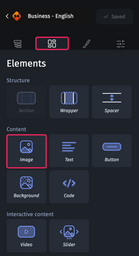
You can then drag and drop the Image element into a section, group, background or slider within the email.
For more information on the design pane, see The structure of the Designer.
Customizing an image
When you select an image and open the “Styles” tab in the design pane, you have several customization options available, divided into these categories:
- Container
- Font
- Link
- Margins
- Rounded corners
- Borders
- Element Alignment
- Hover state
- Custom HTML attributes
- Dynamic content
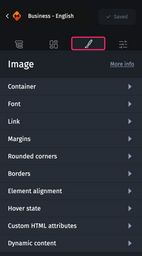
Each of these categories then provides customization options.
Container
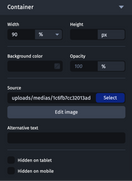
This category includes the following options:
- Width lets you customize the width of the Image, in pixels or in percentages compared to the width of the parent element.
- Height allows you to customize the height of the Image, in pixels only.
- Background color for customizing the background color of the Image.
- Opacity to customize the opacity of the Image.
- Source to define the source of the Image (either an image saved in the Media Library via the Choose button, or a URL of an image hosted externally).
- Edit Image to provide access to the image editing tool.
- Alternative text to customize the alt attribute of the <img> tag in HTML.
- Hidden on tablet to hide the Image in tablet view.
- Hidden on mobile to hide the Image in mobile view.
Font
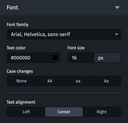
This category lets you customize the look of the alternative text that appears when the image is blocked by the email client. It provides the following options:
- Heading level refers to structured titles (h1, h2, etc.) for improving navigation in documents. For more information on how structured titles work, see Improving email accessibility.
- Font family allows you to select the font in which the Alternative Text will be displayed if applicable.
- Text color to customize the text color.
- Font size to define the size of the text.
- Case change to change the case of the text.
- Text alignment to define how the text aligns with the image frame.
Link
For more information on how the link works, see Adding links to an email.
Margins
This category allows you to customize the top, right, bottom and left margins, inside the Image element. They can be defined in pixels or in percent of the width of the element that contains the Image.

Borders and rounded corners
For more information on how borders and rounded corners work, see Customizing an element’s rounded corners and borders.
Element Alignment
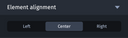
This category gives you access to three values: Left, Centered or Right, and allows you to customize the alignment of the image in relation to its parent element.
Hover state
For more information on how the hover state works, you can refer to Customizing hover states.
Custom HTML attributes
For more information on how Custom HTML Attributes work, see Adding custom HTML attributes.
Dynamic content
For more information on how dynamic content works, please refer to Dynamic content.
If you'd like to find out more about the integration and customization of images, please refer to Using and optimizing images.