The hover state is the state in which a button, text, or image changes when hovered over by a mouse. For example, a button with a dark blue background can turn light blue when the mouse passes over it.

Customizing hover states
This state is only visible in a desktop environment. By definition, a touchscreen cannot display a hover state.
You can customize the hover state of Button, Text and Image elements. To do so, select the element in your email. In the "Styles" tab, go to the "Hover State" category.
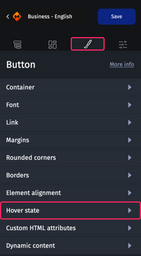
For buttons and texts
You can modify the background color, text color, border color, and opacity of these elements.
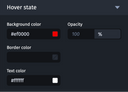
If you want to change the border color on hover, the borders must first be set in the "Borders" category.
For images
You can modify the opacity, border color, and background color (visible only when the image is not loaded) of these elements.
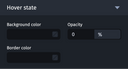
Displaying a secondary image on hover over an image
You can use the background element to simulate the appearance of a secondary visual when hovering the mouse.
Step 1: Add a background image
From the “Elements” tab, drag and drop a background.
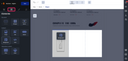
Step 2: Overlay an image
After double-clicking on the background, drag and drop an image on top. Set the height and width to match your background image exactly.
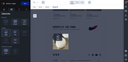
Step 3: Configure the hover state (0% opacity)
Select this overlaid image. In the "Hover State" category, set the opacity to 0%.
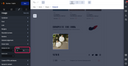
Result: On hover, the overlaid image will reveal the background image.
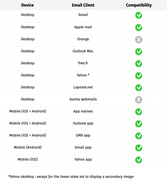
How compatible is the hover state in email clients?
The hover state does not exist for mobile devices, but it is supported by most desktop email clients.
Use cases
Although creativity has no limits, here are several use cases observed among Email Builder users:
- Applying slight opacity on buttons,
- Applying a slightly darker or lighter button color,
- Applying contrasting colors (e.g., a black button with white text can switch to white with black text and borders),
- Using opacity on images layered over a background to display a secondary visual.
Bonus: Discover some of our clients’ use cases!