
You can customize rounded corners and borders for section, group, separator, image, text, button, video and slide elements. To do this, use the “Rounded corners” and “Borders” submenus.
Customizing an element’s rounded corners and borders
Customizing rounded corners
To customize the rounded corners of an element, simply select it and access the “Rounded corners” submenu.
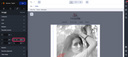
You can then define a single rounding value for all the four corners, or one separate value for each corner.

If you define at least one distinct rounding value, the field containing the single rounding value is automatically emptied.
Customizing borders
To customize the borders of an element, simply select it and access the “Borders” submenu.
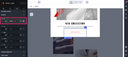
You can then define the thickness, color and line type uniquely for all the four borders using the “All” input field, or separately for each border using the input fields: top, right, bottom and left.
If you define at least one distinct border value in one of the input field (top, right, bottom and left), the field containing the value for all the borders is automatically emptied.