
The designer is divided into three areas.
The structure of the Designer
1. Left area: design pane
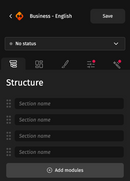
In the left column, you will find several tabs for editing an email.
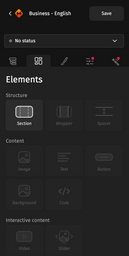
The Elements tab presents the elements you can add to the email. Here, you can find three types of elements:
- Structure elements: Section, group and separator
- Content elements: Image, text, button, background and code
- Interactive elements: Video and slider
These elements can be dragged and dropped into any section of the email in the main area.
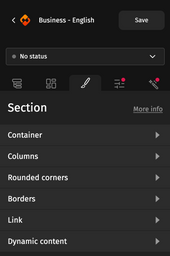
The Styles tab lets you edit the style of the selected element. Each category on the “Styles” tab allows you to design the element in detail.
The title of this tab corresponds to the type of the selected element. The “more info” button is a direct link to the documentation article on this element.
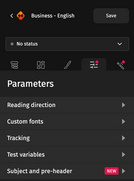
The Parameters tab is about the settings for the email. On this tab, you can choose:
- Reading direction
- Special fonts
- Tracking
- Test variables
- Subject and pre-header (This area is optional, you can contact your account manager to have it activated.)
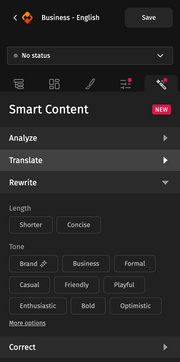
The Smart content tab contains the AI assistant for optimizing or translating the text content of the email.
(This area is optional, you can contact your account manager to have it activated.)
2. Central area: the email
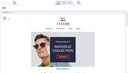
In this area, you can build the email. It lets you design the email with respect to the breakpoints.
This is how this area is structured:
- Cancel last action / go back
- Loaded media
- The breakpoints available: Desktop, tablet and mobile
- Live preview
- Email subject
- Editor mode
3. Right area: validation workflow
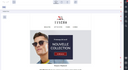
The right column is for validating, testing and adjusting the email.
To correct the technical aspect of the email, you can use quality control (1).
To validate the technical aspect and aesthetics of the email, you can use the mirror link (2) and the possibility to send a test email.

The live preview is also available for validating the email.
Once these aspects have been validated, you can export the email (5).
Also, you can find in this column an overview of all keyboard shortcuts (6) and a link to the documentation (7).
Finally, the project and campaign manager team is available by email and phone to answer any questions you might have via the support (8).