To integrate visuals such as images into your emails, you have two options:

Using and optimizing images
Integrating images
Use the media library: Directly import your images to store them in a dedicated space, accessible from within the Email Builder.
Host your visuals on your server: Integrate your images on a hosting server in order to retrieve a URL to enter in the Email Builder.
For more information on the design pane, please refer to the article: The structure of the Designer.
Hosting images
1. Securing visuals: The HTTPS protocol is essential for emails
Your images can be hosted on your Email Marketing Software (Email Service Provider) or on one of your internal servers, and their display depends on the protocol used: HTTP or HTTPS.
Since 2014, Google has strongly recommended the use of HTTPS protocol as the default standard, and Chrome now applies a strict security policy. This policy prohibits the loading of images via the HTTP protocol from websites using HTTPS protocol.
2. What happens in case of using HTTP for visuals?
When you try to display an image over HTTP on an HTTPS website (like the Email Builder app), Chrome automatically rewrites the resource address to use HTTPS protocol.
For example:
http://monsite.com/monimage.jpg will be transformed intohttps://monsite.com/monimage.jpg
If your Host Service Provider allows access to the image via HTTPS protocol, everything works normally.
If the HTTPS protocol is not activated, the image cannot be loaded and will not be displayed in the Email Builder.
3. Impact on the emails
Impact on the Email Builder: It safeguards data exchange using the HTTPS protocol. As a result, images that are not accessible via HTTPS protocol will not be displayed in the Designer or on the mirror page.
Impact for recipients: Your subscribers using webmail via Chrome will not be able to see images that are not accessible in HTTPS. There is an exception for a few email clients such as Gmail, which hosts images on its own HTTPS cache before displaying them.
4. Switch to the HTTPS protocol
To ensure that your images are displayed correctly, adapt the way you manage the media:
-
Switch to HTTPS protocol for hosting your images.
-
This operation can be carried out by your Host Service Provider, your outsourcer, or your internal technical team.
Adopting the HTTPS protocol for your images is now essential to ensure an optimal user experience that complies with new browser requirements.
Optimizing image weight
Impact of image weight on emails
Loading time: images that are too heavy slow down the display of your email, which can discourage your subscribers. An email that loads quickly is more likely to capture their attention.
Deliverability: An email that's too heavy may be perceived as suspicious by a few anti-spam filters. That's why the Email Builder alerts you to this point during quality control.
Ecological impact: Reducing the weight of images in an email reduces the energy consumption required to store, send and load them, thus helping to reduce the overall carbon footprint of communications.
How to lighten images without losing quality?
- Image size: Use an image size (width and height) adapted to your e-mails.
- Initial compression: Use image processing software (such as Photoshop) for initial compression.
-
Further optimization: Apply compression using specialized tools such as :
- https://compressor.io/ (outil en ligne)
- ImageOptim (pour Mac)
- FileOptimizer (pour PC)
GIF files
This optimization work is even more essential when dealing with the GIF format.
The GIF format, which often leads to very large images, requires even more rigorous optimization. It is well supported by most email and webmail services, except for a few old versions of Outlook (2010 to 2019, excluding Outlook 365), which only display the first image of the animation.
By compressing your images, you ensure lighter, faster emails that are better adapted to subscribers' expectations, while improving deliverability.
Hiding images on mobile and tablet devices
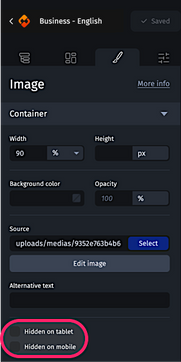
You can hide certain media on mobile or tablet devices. To do this, go to the “Styles” tab in the Design pane from the Designer. In the “Container” category, check the “Hidden on tablets” and “Hidden on mobile” boxes.
Customizing images
You can display customized images using the dynamic content feature.