Spacer elements allow you to divide or structure the content. It is used to create distinct spaces between the areas of an email, thus improving the readability and organization of the message.

Spacers
Spacers are often lines, margins or empty spaces that help guide the reader's eye from one section to another and make the design more fluid and attractive.
Adding a spacer
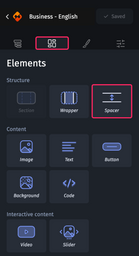
In the “Elements” tab  of the design pane, there is a “Spacer” element that allows you to add space to a section (or group).
Adjusting a spacer
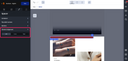
In the conception pane from the “Styles” tab represented by the brush icon, click on the “Container” category to configure the spacer element with:
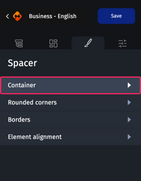
- Container: The default height of a spacer is set to 20px. You can enter the value of your choice. The default background color is transparent, but it is configurable, and the color will apply to the entire spacer.
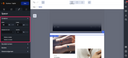
- Rounded corners: The management of rounded corners applies to the element. You can see the rounding by applying a background color to the container. For more information about rounded corners, see Customizing an element’s rounded corners and borders.
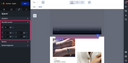
- Border: You can add a border that will only apply to the middle of the spacer. The size can be configured and the line style can also be selected from the drop-down menu.
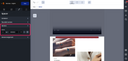
- Element alignment: You can align the element to the width of its location (section, group, etc.). This will only be visible if the width of the spacer is less than 100%.
Best practices
For more information about code weight, please refer to Analyzing and optimizing the weight of the HTML/CSS code in emails which refers to “sensible” use of spacers in emails to optimize HTML code weight. Some spacing can be achieved by using margins that consume less HTML code.
For more information on the background element, see Backgrounds which advises using the spacer to create space between two elements because the element is transparent by default.
Also worth knowing
The spacer has no content, so readers who read aloud will be able to ignore this element. By using attributes such as aria-hidden="true" or role="presentation", the code tells assistive technologies which elements to ignore, as they do not contribute to the meaning of the message.
The Email Builder improves the accessibility of your emails without any manipulation on your part. For more information about email accessibility, see Improving email accessibility.