Sections are the basic elements of an email and correspond to the top level of its structure. They contain the content elements (texts, images, buttons, etc.), and it is from these that you can define modules.

Sections
Adding a section
To add a section to an email, switch to the “Elements” tab in the design pane.
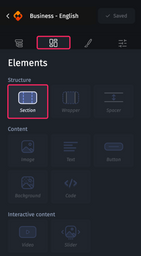
You can then drag and drop the “Section” element to the position you want in the email.
For more information about the design pane, please refer to The structure of the Designer.
Adjusting a section
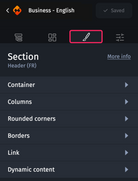
When you select a section and access the “Styles” tab in the design pane, you will have access to several customization options divided into 6 categories:
- Container
- Columns
- Rounded corners
- Borders
- Link
- Dynamic content
Container
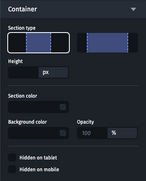
This category gives you access to the following options:
- Section type, which selects the type of behavior of the section in desktop view. For more information, please refer to The section type option.
- Height, which sets the minimum height of the section.
- Section color, which allows you to customize the background color of the Section over 100% of the email width.
- Background color, which allows you to customize the background color of the section within the width of element (by default 640px).
- Opacity, which allows you to customize the opacity of the section and its content.
- Hidden on tablet, which allows you to hide the section in tablet view.
- Hidden on mobile, which allows you to hide the section in mobile view.
Columns
For more information on how columns work, please refer to Customizing columns
Rounded corners and borders
For more information on how rounded corners and borders work, see Customizing an element’s rounded corners and borders.
Link
For more information on how links work, please refer to Adding links to an email.
Dynamic content
For details, please refer to Dynamic content.