A “Code” element refers to the section where you can manually insert lines of HTML or CSS code. These elements enable advanced customization of emails in the Email Builder. They are particularly useful for including specific elements like conditional blocks.

Code
In email design, flexibility and personalization are key factors in enhancing the performance. Among the elements available in the Email Builder, the option to manually add code enables you to meet specific requirements such as integrating conditional blocks.
For example, the use of a conditional block allows you to display different content according to defined criteria (e.g., displaying a first name in a text when it is present in the database).
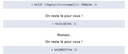
This customization can be done in the Email Builder, avoiding the need to manually insert raw code after exporting the email. It is easier to locate and manage the conditional blocks in the Email Builder than in the raw HTML markup.
Which type of code can be added?
Code integration in an email is generally done in HTML. While HTML forms the base structure, other languages can be used for email personalization. For example, you can add:
- HTML for the structure and content,
- CSS for styling the elements,
- Custom variables for inserting dynamic data. For more information on managing test variables, see Managing test variables.
- Conditional code to personalize the displayed content based on the recipient’s profile or actions.
In an email, the code must be simple and optimized to be compatible with all email clients, as not all of them support more advanced technologies like JavaScript. In general, the code element is used to insert code generated by routing tools.
Inserting code
The "Code" element can be found in the "Elements"  tab of the design pane. Like any other element, you can simply drag and drop it from the left-hand pane into the design space to integrate it.
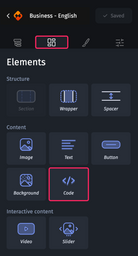
In the design space of your email, you just need to double-click on the element to enter or copy and paste the HTML markup. For example, you can insert your regular variables and functions here, so you don't have to modify them in your emails after export.
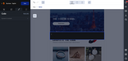
The code element can be inserted into these elements:
- Section
- Group
- Background
Checking the effect of the code
Once you inserted an element containing code, the Email Builder cannot interpret it, meaning that the result is not visible in your interface, mirror link, or preview. To check and validate the final rendering of your email with a code element, please conduct a preview test (an email test) from your routing tool.