Posting to the pinboard

All internal staff members with read access for a case can post messages. It is not required to be assigned to the project.

You can compose a message in the message field and send it by clicking the “paper plane”. Hyperlinks are sup­ported, meaning that pasted URLs are turned into working links after sending the message. If necessary, the text will be shortened.

You can delete your own posts individually using the Delete message function.
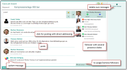
Pinboard at a quote

Addressing

In order to address additional or individual staff members, enter @initial, @name, @login-name, or click the profile image on the right-hand side. An addressed person doesn’t need to be a follower.

To address all project members, enter @all.

Notification logic - scheme to channel

The following channeling scheme is offered to channel "news floods":

  • "We won the project!": Notify all followers.
  • "@ALL We won the project!": Notify all project members.
  • "@XYZ please arrange a workshop": Only contact directly addressed employees.
  • @PUBLIC: public postings (see below).
Info

Admin: For this, the value of the variable PSA_FLW_PIN_BRD_RUL (project contact roles that automatically follow the pinboard) is preset in the standard with the following roles: COM_PRS, TEC_PRS, CON_PRS, SPT_CON, CTR_PAR_INT, TEC_PRS_MKT, COM_PRS_MKT, EVT_CST_CON, SPT_CON_NLT, TEC_PRS_NLT, SVC_PTN, SVC_MAN, CTR_PAR, CTR_MAN, CTR_MAN_SUB.
The shortcut can be set via the variable PSA_PIN_BRD_RCP_ALL and defaults to @ALL and @ALLE. Both can be used, independently of the language.

Note: Addressing someone by their @email address is not supported. This also applies to teams. A team is resolved in the pinboard’s contact list after it has been assigned to the task, meaning that the team members are added to the Pinboard’s contact list and marked as followers. If the pinboard is opened by a team member following it, the corresponding "following" icon (eye icon) is colored on the pinboard.
In pinboard posts, teams can be addressed using "@name of team" or "@paraphrase of team". The team members are notified individually about sent posts.

Public postings

In installations in which customers or partners are offered to track and create service calls or other cases in a por­tal, and also use this portal to communicate via the pinboard, it is important to be able to control which pinboard posts should be public.

This is possible by using @PUBLIC in the pinboard post. If the entry contains this addressing, it will be published in the portal if its implementation makes use of this information.

The pinboard can be configured via variables of the process (i.e., e.g., individually for different service call types) so that the user needs to decide in a submenu when sending whether the post is "public" or "internal". If one chooses "public", the entry is given the @PUBLIC addressing on a new line. It is highlighted by a color in the CRM pinboard.

Info

Admin: A variable with the process ID and the prefix PSA_PIN_BRD_PUB_ must be created for pro­cesses that are to receive a popup menu when posting. Example: PSA_PIN_BRD_PUB_PSA_SVC_TRB for faults. The value can be "y" or "n".

Emoticons on the pinboard

The input field of the pinboard is an HTML editor in which emoticons (emojis) can be inserted via a selection dialog, grouped by themes. Each usage is counted, and the system determines preselected favorites on a per-user basis.

The emoji keyboard of Windows 8/10 is supported. The icons are mapped to images (Web client only).

Notification

As soon as something is posted to the pinboard, a notification is automatically sent to all followers or only to the addressed employees (even if there are other followers). The message includes the name of the author and the date.

The recipients can open the pinboard from the message using a hyperlink. If a user doesn’t have access to the proj­ect, they can read the message, but cannot open the pinboard.

Tracking a case

All internal staff members who are also project members can track cases. They are listed on the right-hand side, including their profile image, their presence status and their follower status.

Following manually

You can follow by clicking the picture or your own "follow" icon at the top right. In addition, in My Data, each user can find the flag Follow pinboard in the case lists. It gives the user an overview of the cases they follow. The flag can be edited. Hence, you can conveniently make yourself a follower of multiple cases.

Following automatically
Info

Admin: In the variable PSA_FLW_PIN_BRD_RUL, you can set the contact roles that should automatically track the pinboard. If an asterisk ("*") is specified, all contact roles track.

If a user cannot track a case due to a missing role, the system offers support:

  1. If the user addresses a staff member who is not a project member, the system asks the sender after sending the post whether the user should be added to the project.
  2. If the user is not a project member, they are asked when attempting to track whether they want to add themselves to the project. To do this, she or he requires write permission for the project.
    If write permission has not been granted, the user is offered to send a request for admission to a project member.

Presence status

The presence statuses, "online", "off-line" or "not available", are displayed statically in the follower list to the right next to the name (and switched between the clusters). You can change your status globally by clicking your presence icon.

System posts

The system is able to post to the pinboard as well. Events that trigger such posts are, for example, a change made to the contents of specific case fields or the generation or finalizing of a specific activity. System messages can be noticed immediately by their JustRelate CRM icon.

Info

Admin: What causes system posts to be triggered can be defined in the administrator list Pinboard tracking, menu Administration/Sales (or Service)/Pinboard tracking. Here, extensive possibilities are available for specifying which changes to the case in the pinboard should be posted by the system.
The icon for system posts can be defined via the variable PSA_PIN_BRD_SYS_MSG_IMG.

See also: Administration, Project pinboard tracking