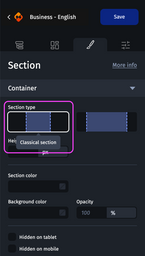
Within the “Container” category of the “Styles” tab of the design pane, there is the “Section type” option. It allows you to choose between the “Classical section” option which is the value selected by default or “Full width section”, and will have an effect on the way the section and its contents are displayed in desktop view.

The “Section type” option
Compatible with most email clients, a full-width section allows you to create more immersive emails.
For more information regarding the Section element, please refer to Sections.
Classical section
A section added to an email will be of the “classical” type by default.
In desktop view, its width will therefore be fixed to the value defined in the “Campaign width” option (for example 640px). This option is present in the “Container” category of the “Styles” tab of the design pane, which appears when you select the Body of the email.
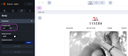
So when you add an element with a width of 100% to the section, that element is 640px wide.
Full width section
After adding a section to an email, you can select the “Full width section” type by accessing the “Container” category in the “Styles” tab of the design pane.
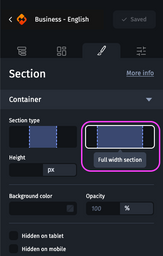
In desktop view, the section will then occupy the entire available width. Consequently, all the elements it contains will see their size and position adapt to the width of the section.
For example, for a 3-column section each containing an image, a text and a CTA, in the case of a “classical” type section in an email measuring 640px wide, it will be rendered as shown below.
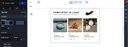
Changing the section type to “full width” yields the following result.
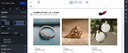
This section and its contents will adapt depending on the screen size of the email recipients.
Section color behavior
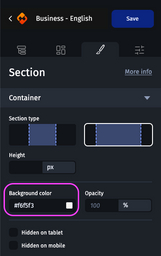
When you change the type of a section to “full width”, the background color and the section color overlap: only the background color remains visible. The “Section color” option is therefore no longer visible.
However, if you had only defined the section color, then this will be applied as the background color when changing the section type.
Good practices to manage special case of the background image
If you want the visuals of an email to be displayed in the best possible way in the majority of emails clients, we recommend using desktop visuals with a width of 1500px, and a height equal to the height of the content you're going to add to the background.
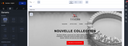
In the example above, the background contains an image (logo), several texts, a CTA and top and bottom margins. In total, the content has a height of 500px. The background image should therefore be 1500x500px.
However, if you want the visuals to be compatible with all emails clients, and in particular with Orange, GMX and Web.de emails clients, we recommend using visuals with a width of 640px, and a height equal to the height of the content you're going to integrate into the background.
Identified limits of the feature
- Older versions of Outlook Windows (2016, 2019 and 2021) are not compatible with the “full width” option. With these emails clients, full-width sections are displayed with a fixed width of 950px.
- When integrating an Image element in a “full-width” Section, it is necessary to fix the height of this image so that it is displayed correctly in all versions of Outlook Windows.