Modules are content blocks that have been prepared for use in the Email Builder, e.g., headers, footers, or other recurringly used combinations of email design elements. By combining modules, you can compose your emails more efficiently, and ensure that they are visually consistent across your mailings.

Modules
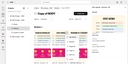
Modules are always clearly assigned to a project and can be created, managed and maintained via the “Modules“ section of a project, selectable from the project navigation sidebar to the left.
Using the dropdown menus above the module list, you can have the modules filtered by their status, and ordered by the date they were edited, or alphabetically.
Working with modules
To edit a module, simply click the corresponding module item in the overview. This opens the Email Builder for editing the module.
As with emails, every module item has a “More” menu at the top right by means of which you can view its details, or rename, duplicate, copy, move, or delete the module concerned.
Note that deleting a module doesn’t affect the emails it was used in. Email content originating from a module is not linked to the module, so this content is retained.

A deleted module cannot be restored. You will therefore be asked to confirm your action.
Creating an empty module
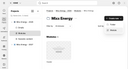
To create a module from within the “Modules” area of a selected project, click the “Create new” menu button at the top right, and select “Module”.
After specifying the name of the new module, it is displayed as an empty item in the overview. You can then click this item to open and edit the module in the Email Builder.
Adding modules to an email
In terms of email composition using the Email Builder, modules are saved “Section” elements. You can create a module either by saving a section of an email, or via Home as shown above.
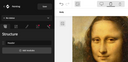
To add modules to an email, first find it in the project concerned, and open it in the Email Builder. Then switch to the “Structure” tab, and click “Add modules”.
You are then presented with the list of modules you can choose from. Now, simply select the desired ones, and confirm the action. The selected modules are then appended to the email content.
You can modify inserted modules as needed. Your changes will not be reflected in the modules.
As with any other section, you can move a module within an email by copying the module, pasting it at the desired location, and then deleting the source.
Saving a section as a module
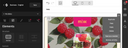
To save a section of an email as a module,
- open the email for editing,
- find the section you wish to save,
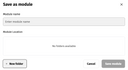
- select “save as a module” from the section’s menu at the top right.
You will then be asked to specify the name of the new module, as well as the folder it should be placed in. You can also create a folder via this dialog if needed.