User-specific configuration

For each JustRelate CRM user, details of her or his user account are required. Follow these steps:

  1. Open the My data form (your profile menu),
  2. choose Configuration/Server-Groupware from the toolbar on the right,
  3. switch to the  Groupware tab in the configuration mask,
  4. make the following entries in the mask:

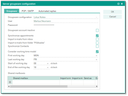
Server Groupware configuration in JustRelate CRM

Groupware configuration: Select one of the Groupware configurations offered by the administration.

User: Enter your Groupware user name. For Lotus Domino, this is the Lotus Notes login in the form "user name/ organization name".

Password: Enter your Groupware password. For Lotus Domino, this is the internet password. It can differ from the Lotus Notes password. Your administrator can tell you whether or not this is the case.

MS Exchange only: If the internal user of "DCOMaccess" has full access to MS Exchange, it is not necessary to enter a password for the accounts. Your administrator can tell you whether or not this is the case.

Synchronize appointments: Activate this flag if you want to have appointments synchronized automatically.

Import emails from inbox: Set this flag if emails from the Exchange inbox should be automatically imported to the CRM.

Import emails from "Pisa­Sales" folder: Set this flag if you want to automatically import emails from the this groupware folder to the CRM.

Group mailboxes: Here you can see as a team member (readonly),

  • to which collective mailboxes you are assigned,
  • whether the emails in these collective mailboxes are imported automatically (flag),
  • which email address is used for these mailboxes as the sender.

In this context, further details are available in The CRM mailbox.

Consider working time model

This controls whether the synchronization job restricts appointment synchronization to the work time defined in the CRM. The working time model is considered by the global variable
PSA_SYN_GRW_USE_WTM. It can also be set up per user ("Consider the working time model during the import of private activities?"), in which case the user-specific variable PSA_SYN_GRW_USE_WTM is created.

The values that regulate the working time of the employee or company are defined in environment vari­ables.

PSA_WRK_BEG_DAY: First work weekday (MON/TUE/WED/THU/FRI/SAT/SUN), default=MON
PSA_WRK_BEG_HOU: Start of work-hour, default=8
PSA_WRK_END_DAY: Last work weekday (MON/TUE/WED/THU/FRI/SAT/SUN), default=FRI
PSA_WRK_END_HOU: Working end hour, default=18

So-called "private" activities are marked with the "private flag" (here private appointments), which can be excluded from the synchronization.

Automated responses: In the Automated replies tab, you can configure an automatic reply to incoming emails in a freely selectable time period (independent of the substitution period). For example, you can automatically inform about your absence (out-of-office email).

The replies are sent by the Exchange server. If you change the automated reply in Exchange, it will be synchronized with JustRelate CRM.

Note: In the personal signature management (My data/Additional data/E-mail signatures), you can define one reply signature per language and mark it as such with a flag. The reply signature is automatically inserted before the original text when creating a reply email or when forwarding the email.