Managing resource master data

You can manage resources by means of the corresponding form using the Sales/Resources/Resources mas­ter data menu.

Every resource is identified by an automatically assigned unique number and can be described using the Name, Responsible, Inventory number, Comment, Status, Type and Group assignment attributes.

Creating a resource

  • You can create a resource like any other record and maintain the required attributes (see also below: resource status, resource types, resource properties and, as needed, calendar release).
  • Resources feature a document tab where you can save instructions, for example. Corre­spondingly, in the document management, the view on resources can be found in the usage context.
  • Should a specific resource type (see below) be provided, you can asign a person (internal staff member) or a service object to the resource (assignment).
  • Resource groups can be managed separately and linked to the corresponding resources. Like all records, resources are subject to access control on the record level. The default access for resources is copied per user and per group.


Info

Admin: The new PSA_RSC_PSC_ACC variable controls the standard access (default D0).

Resource status

The resource status is preset administratively. In the standard, the Active and Dis­abled statuses can be used. The status is for representing further conditions such as leasing, fault, in repair, for example.

Managing resource statuses

Info

Admin: List Administration/Resources/Resource status.

This list is for maintaining the resource statuses that are made available as a selection menu in the resource form.

Attention

Attention: The To be released flag controls the availability of the resource in selection dialogs. Only plann­able resources are offered. In administration lists, not plannable resource records are displayed in red.

Administration / Resource status

Explanation, usage

Customizing

Name

Name of the status

creating allowed

Identifier

Unique ID

creating allowed

To be released

Controls the availability of the resource in selection dialogs

editing allowed

Status of a staff member resource

The status of a personnel resource is coupled with the status of the person (internal staff member). This ensures that only active staff members have active resources.

  • If a contact is assigned to a resource and this contact has a final status, then the first not plannable status of the resource is assigned (in the standard, this is inactive).
  • If the status of a contact with a resource changes to a final status, then the status of the resource is also changed to the first not plannable status.

Resource types

In JustRelate CRM, there are the "Resource", "Person", "Service object" and "Resource group" resource types that the administrator maintains and are usually not changed.

Resources of the "Person" and "Service object" type are linked one-to-one to an internal staff member or to a ser­vice object. This makes it possible to maintain selected internal staff members (e.g., technicians) or service objects maintained in the system (e.g., demo machines) as a resource, and to group them together with other resources. The link can be created via the Assignment button in the Resources form. The assignment automatically sets the resource Type. It is read-only. If the resource is already linked to an internal staff member or a service object, a message is displayed.

Resources of the Resource type are general resources such as rooms, projectors, vehicles, etc. These resources exist autonomously and are linked to no other object. Their type is automatically set if the Assignment field is left empty.

The resource administration uses the types:

  • Staff member resource
  • SO (service object) resource
  • General resource

Note: Only if an internal employee was created as a resource, the employee resource is checked for overlapping appointments, and a corresponding conflict message will be output. This also applies to synchronized groupware appointments. With internal employees, an employee resource can be opened directly from the function bar.

Managing resource types

Info

Admin: See the Administration/Resources/Resource types list.

With JustRelate CRM, there are the "Resource", "Person", "Service object" and "Resource group" resource types that can be managed here and changed only by an administrator with customizing knowledge.

Administration / Resource types

Explanation, usage

Customizing

Name

Name of the type

creating allowed

Identifier

Unique identifier

creating allowed

Pictogram

Use of a BLOB as a pictogram, displayed in lists

creating allowed

Dialog


creating allowed

Modal dialog


creating allowed

Resource properties

Internal contacts, i.e., employees, have properties and skills. JustRelate CRM lets you select resources according to any properties like qualification, driving permit class, passport validity, responsibility for certain zip code areas etc.

You can also manage employees as employee resources. Their properties can be managed in a shared list of “resource characteristics” and searched for and entered in combination.

You can select a property both at the person and at the resource without having to create it twice. The context field can be controlled accordingly.

You can select contact properties of a resource if it is a contact resource. You can manage contact properties in the "Contact properties" administrator list. Properties of resources are also available with service objects.

  • The administrator can define properties.
  • Users can assign any number of properties and characteristics to a resource.
  • Property searches may include other resource attributes.

Administration of resource properties

Info

Admin: Administration/Resources/Resource properties list.

Administration / Resource properties

Explanation, usage

Customizing

Name

Property name

creating allowed

Multi select

Comma-separated entries as a pull-down menu (multi selection)

modifying allowed

Menu

Comma-separated entries (characteristics) of a property

creating allowed

Description

A long description of the property that is displayed in the selector

creating allowed

Validation

Not null (logic), including the Validation column - the property must have a value = mandatory field, string to validate the field content

creating allowed

Not null

See above

creating allowed

Access

Properties can be hidden from groups. The access can be set by means of a select function (function bar).

creating allowed

Identifier

Unique identifier

creating allowed

Ext. key

Key value from a foreign system, if required

creating allowed

Assigning properties to a resource

Selecting defined properties

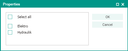
The Resources form includes the Properties tab. The list shows the Property, Value, Note and Cre­ation date fields. As an end user, all properties the administrator has created are available to you for selection. A property can be selected directly at the field, or freely entered.

If there are several variants of a property, the administrator can provide a multiple selection option for the Value field. The variants of a “driver's license” property, for example, could be the classes A1, A, B, C1, C, D1, D....

Searching for resources with specific properties (skills)

Using a filter, you can search for resources with specific properties (Skills). The corresponding 1:n relation is provided in the filter form under All fields/Resource property. Here, you can search for entries in "property" and "note" (as a variant).

Using the filter selection in the resources view of the resource planning, the skills search can be restricted to a specific group or resource.