The color display on the web client interface is controlled via color schemes. Several color scheme variables are available for this purpose (PSC_RAP_...).

Color schemes and corporate designs
Related topics

Admin: Changes can be made only by developer users (member in group 41). The changes are then binding for all users (WORLD).
Please also contact your JustRelate project engineer if you want to change the color scheme of the CRM web client.
You can select and apply a default color scheme (green, blue, red, gray) from the menu or create your own one applying, e.g., the corporate design colors of your company. Using different color schemes can also be useful for distinguishing the test system from the production system.
A color scheme is based on the corresponding variables. The record must have a unique identifier.
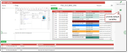
Administration tool for color schemes with example image
Each scheme consists of variable definitions (PSC_CLR_...) that usually define colors.
- Create a new scheme or copy an existing one.
- Using the Insert all variables function (subdialog), the Variables list is preset with the required standard variables. The color value is then automatically selected for the corresponding variable. The color values can also be found in the PiSA cubes Resources list on the Colors tab.
- In the variable list, colors are assigned to the interface elements. The Default value column contains the colors given by the standard, the Value column shows the colors used by the scheme.
- Use case: First restrict the variable list to elements that are characteristic for the schema. To do this, search in the Standard Value column for the colors
JR_DARK_% | JR_MAIN_% | JR_LIGHT_%and sort them. You will see gray and green color assignments. You should replace the green color assignments in your new scheme with your own company color or a derivative of it. - In the Values column, select corresponding colors for your new scheme from the existing color resources. Variables not supplied receive their color from the standard. If the desired colors are not available, create them in the PiSA cubes resource management (developer license required).
- Execute the Apply color scheme function, log in to the web client, and test the interface.
- If variables are adjusted for a customized color scheme, you should provide a sample screenshot as an image.
Note: The color schemes for the tablet and pocket app can also be managed here.
Presentation of elements in the mask area
- There are special title symbols available.
- Form headings have the same font as the subject and a modern light symbol.
- Unnecessary frame lines are automatically hidden by the web client.
The status bar does not have its own background color. For this, there are three PSA_CCP_HEA_% templates that don’t define the foreground and background color. For the form headers, the PSA_TXT_TIT template has the corresponding font, and there is a template PSA_TXT_TIT_ICO for the symbol. The required light symbols are available as PFDs, complementing the already existing symbols.