The Email Builder lets you configure special fonts and Google Fonts for aligning your texts with your brand guidelines.

Integrating and managing special fonts
Compatibility
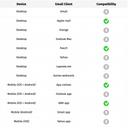
Below you will find a compatibility table for webmail and email clients with custom fonts. In the absence of compatibility, a fallback system font (Arial, Times New Roman, Helvetica, etc.) will be used to ensure that the content is always displayed.
This fallback font is customizable.
Hosting custom fonts
Below are the steps required to host your custom font.
1. Convert your font to .WOFF format
Most often, you will use font files in .TTF, .OTF, or .EOT formats. However, to maximize display compatibility in an email, the font must be hosted in Web Open Font Format (WOFF). To do this, you can convert your font files using an online converter such as Online Font Converter.
2. Host your font on a server
To host your font, upload the .WOFF file to one of your servers, using FTP software, for example.
The folder must be publicly accessible via the HTTPS protocol for the fonts to display correctly (example URL: https://www.mysite.ex/media/my-font.woff).
3. Set up access to the font
To ensure that your font can be displayed in various compatible email clients, here are additional technical requirements:
- CORS (Cross-Origin Resource Sharing) must be enabled on the server by adding an HTTP header. CORS permissions are the rights applied to the server that allow webmail and email clients to download the font when displaying emails. For more information, see https://enable-cors.org/server.html.
- The content type is declared on the server by adding the
Content-TypeHTTP header which must befont/woff.
Adding a special font or using Google Fonts
Using a special font
To add a special font, first verify that it is correctly hosted.
Once hosted, go to the “Parameters” tab in the design pane from the Designer  , then in the “Custom fonts” category.
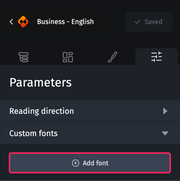
By clicking on the “Add Font” button, two tabs appear, “Special font” and “Google fonts”.

After choosing the “Special font” tab, enter the following information:
- Font name, and
- the font’s hosting URL
For environments that are not compatible with the custom font, the substitution font will be displayed with the option to define:
- its weight, and
- its typography
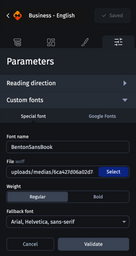
Then, validate the fallback font to confirm the setting of the special font. Otherwise it will not be taken into account.
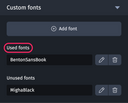
Once the special font is configured, it appears in the list of unused fonts.
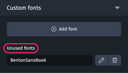
To apply it to your email, first select a text element. Then, click on the "Styles" tab  , and then on the "Fonts" category to reveal the "Font Family Collection" dropdown menu. Finally, choose the font family to use.


Once selected, the font moves to a different list and appears among the used fonts, visible in the "Settings" tab in the "Custom Fonts" section.
Using a Google Font
The Email Builder uses Google's API to assist you in choosing from its library of over 1500 special fonts that are already hosted by Google.
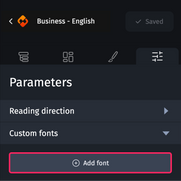
In the "Settings" tab, click on "Custom fonts," then click on the "Add font" button. Choose the submenu for Google Fonts.
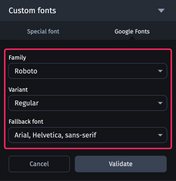
You will need to define the following fields:
- Font family
- Variant
- Fallback font
Be sure to click on the "Validate" button to ensure that the font settings are applied correctly.
Google Fonts and GDPR

In compliance with European regulations on data protection (GDPR), we would like to inform you that using Google Fonts in your emails may not be the best option. Indeed, Google's data collection practices are not completely transparent and are not entirely under our control. For this reason, we recommend exploring privacy-respecting alternatives that ensure better GDPR compliance. This is part of our commitment to supporting secure and responsible data practices.
Special fonts and modules
The special fonts used in a module will also be applied to the email when it is imported.
Therefore, to save time in design, we recommend that you add special fonts to the recurring modules of your emails (for example the header module and the footer module).
These special fonts will then be visible in the Designer, in the “Settings” tab of the email.
Unused fonts
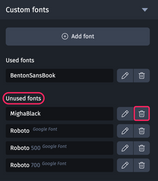
Before exporting your email, we recommend that you delete unused fonts.
Even if they are not applied to texts, they are declared in the HTML code of the email. Webmail environments will attempt to download them despite their non-use, unnecessarily increasing the code size and potentially affecting display performance.
What if a font is not displayed?
After applying a special font to your texts, if it is not displayed in the Designer, there may be errors in its hosting.
The Email Builder reports the following missing information to the Quality Control level:
- The absence of CORS permissions (Cross Origin Resources Sharing)
- The
Content-Typevalue is incorrect. Remember, it should be "font/woff" - the WOFF file is not accessible over HTTPS
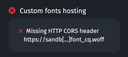
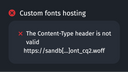
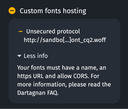
In the three mentioned cases, it is important to go back to the font hosting and correct any missing or incorrect information.