
To select an item in the Email Builder, simply click in the section, then click on the item you want.
Getting started with the Designer
Selecting an item
To make sure you’ve selected the right element, check the title in the left-hand column, which should correspond to the selected element.
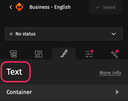
For the text element, click once to format the text in the left-hand column, and click twice to edit the text.
Basics
Adding an element
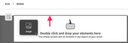
To add an item to the email, first double-click in the section where you wish to add it. Once you're in the section, you can drag and drop the item from the left-hand pane into the section.
Make sure you drop the item once the dark bar is displayed, either at the beginning of the section, or after the element already there.
Duplicating an element
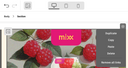
To duplicate elements, hover your mouse over the wheel icon at the top right of the element you wish to duplicate and click on “Duplicate”. You can also use the keyboard shortcut to copy an element (Ctrl + C) or cut it (Ctrl + X) and paste it (Ctrl + V).
Deleting an element
To delete an item, hover your mouse over the wheel icon at the top right of the item and click on delete. You can also press the “Delete” key on your keyboard.
Moving an element
To move an element within a section, use drag & drop to define its place in the section.
To move an element from one section to another, you can copy the element, and paste it in the section of your choice.

You can also move an item to a section of a different email using this method.
Canceling or restoring an action

To cancel an action, click on the left arrow at the top of the designer. To restore an action, click on the right arrow at the top of the designer.
You can also use keyboard shortcuts: To undo an action, use Ctrl + Z, and to redo an action, use Ctrl + shift + Z.
Saving an email
To save your email, click on the “Save” button at the top left of the designer.
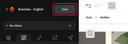
You can also use the keyboard shortcut Ctrl + S.
Useful keyboard shortcuts in the Designer
To find out about keyboard shortcuts in the Designer, see Overview of keyboard shortcuts.